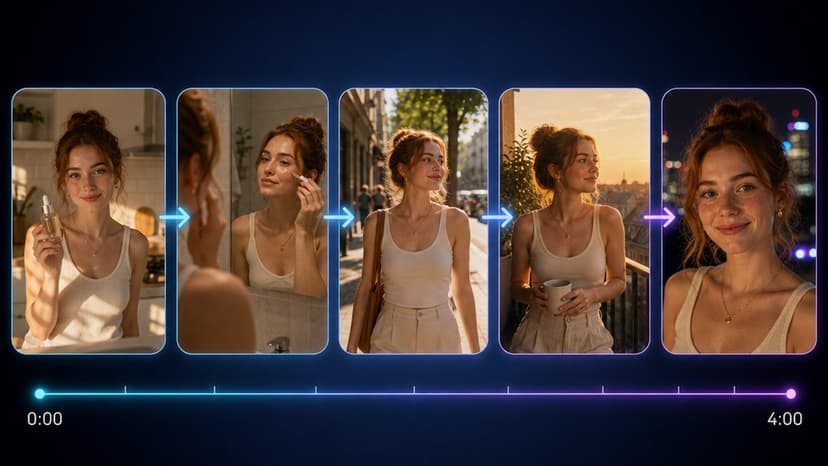
Guide to Crafting Epic Videos with AI
Your hero changes face between shots. That is a mechanism problem, not a prompt problem. The three things that actually hold a character together across shots.
TL;DR
Characters drift between AI video shots because each generation re-imagines them from text, and text is a lossy description of a face. Three mechanisms fix it: reference images, supported by 12 video models; first-to-last frame, supported by Seedance 2.0 and 2.0 Fast; and chaining, where each segment carries the previous segment's finished clip and continues from its final frame. Lock the character first, because every later shot inherits it.
Your hero has a scar on the left cheek in shot one, no scar in shot two, and a different jacket by shot four.
That is the actual problem with AI video, and it is not a prompt problem. You can write the most precise character description in the world and the next generation will still drift, because each generation starts from nothing and re-imagines your character from the words.
Epic means several shots that belong to the same world. So the whole craft is continuity, and continuity is a mechanism question, not a wording question.
Here is what actually holds a character together across shots.
Why repeating the description does not work
The common advice is to name the character and repeat the clothing in every prompt.
It helps a little. It cannot solve the problem, because text is a lossy description of a face. "Dark-haired woman, mid-thirties, leather jacket" describes millions of people, and the model picks a different one each time.
Every shot generated purely from text is a fresh guess. Consistency needs the model to see the previous result, not read about it.
The three mechanisms that actually work
Reference images. Give the model a picture of the character, not a description. Thirteen models support reference-to-video, including Seedance 2.0 and 2.5, Veo 3.1, Wan 2.7, 3.0 and 3.0 Prime, Kling 3.0 Motion Control, MiniMax H3 and Gemini Omni Flash. The reference travels with the request, so the face is shown rather than described.
First and last frame. Two models, Seedance 2.0 and Seedance 2.0 Fast, accept both a starting and an ending frame and generate the motion between them. Hand shot two the final frame of shot one and the cut becomes continuous rather than a jump.
The chain. The strongest of the three, and the reason the Long Video Generator exists.
How the chain works
Segment one renders from your character references. Every segment after it carries the previous segment's finished clip as a video reference and continues from its final frame. Character references ride along on every segment as well.
So each shot sees two things: who the characters are, and exactly how the world looked a moment ago. Identity and environment both stay continuous, because nothing is being re-imagined from scratch after the first shot.
That is the difference between four clips of a similar-looking person and one continuous piece. It runs on Seedance 2.5, and the full walkthrough is in how to make long videos using AI.
A workflow that holds together
Lock the character before generating any motion. Get a character image you are happy with first. Every later shot inherits it, so a mediocre reference propagates through the entire piece. This is the step worth spending real time on.
Decide whether you need shots or a sequence. Discrete scenes that cut between locations suit the Series Generator. One continuous run of action suits the Long Video Generator and its chain. Picking wrong costs you a re-render, so pick deliberately.
Test one segment before committing to eight. Generate the first, look hard at the final frame, and only continue if it is right — because in a chain, every later segment inherits that frame. A flaw in segment one is a flaw in all of them.
Direct the camera separately from the subject. Kling 3.0 Motion Control and Motion Control exist for exactly this. Describing camera movement inside a subject prompt tends to get you neither.
Add dialogue last. Generate the visual, then bring it to Lip Sync. Doing it the other way round means any regeneration throws away the sync work.
On credit costs, and why no article should quote them
You will find guides listing exact credit costs per model and per second. Treat them as fiction.
Costs move with models, providers and campaigns. More importantly, the app quotes the real price from the server before you generate — you see the actual number for your actual settings, not an estimate someone wrote down months ago.
Check the quote in the tool. Current pack prices are on the pricing page. Anything else is a guess dressed as a specification.
Picking a model without a fake benchmark table
Nobody has a trustworthy cross-model consistency score, and every article publishing one to two decimal places invented it. What is available is capability and behaviour.
Continuous action, one world: Seedance 2.5 through the chain. Built for exactly this.
Discrete shots from a character reference: any of the thirteen reference-to-video models. Seedance, Veo 3.1 and Wan are the ones people reach for most.
Deliberate camera work: Kling 3.0 Motion Control.
Bridging two known frames: Seedance 2.0 or 2.0 Fast, the only two with first-to-last-frame.
Speed while exploring: the Fast and Turbo variants: Seedance 2.0 Fast, Kling 3.0 Turbo, Veo 3.1 Fast. Explore cheap, finish expensive.
The full list is at Models. Forty-four video models are live, and the right one depends on which of the above you are doing.
Finishing
Upscale after the edit, not before, using the Video Upscaler. Upscaling then cutting means paying to sharpen frames you throw away.
Auto Captions for anything going to social, since most of it is watched muted. Shorts Generator to cut vertical versions from the finished piece. Motion Poster if you need a moving key art still out of the same character.
The part that is still craft
None of this replaces knowing what the shot is for.
The mechanisms above keep a character stable. They do not decide where the camera should be, how long to hold, or what the scene is about. Continuity is the floor, not the ceiling, and it is the floor most AI video never reaches, which is why solving it is worth this much attention.
Get the character locked, chain the shots, and the tooling stops fighting you. What is left is the actual work.
Frequently Asked Questions
Why do my AI video characters change between shots?▾
Because each generation starts from nothing and re-imagines the character from your words. Text is a lossy description of a face: "dark-haired woman, mid-thirties, leather jacket" describes millions of people, so the model picks a different one each time. Consistency needs the model to see the previous result rather than read about it.
Does repeating the character description in every prompt help?▾
A little, but it cannot solve the problem. Repeating clothing and name nudges the model, yet every shot generated purely from text is still a fresh guess. Reference images, first-to-last frame, or chaining are what actually hold identity across shots.
What is the chain in the Long Video Generator?▾
Segment one renders from your character references. Every later segment carries the previous segment's finished clip as a video reference and continues from its final frame, with character references riding along on every segment. Identity and environment both stay continuous because nothing is re-imagined from scratch after the first shot.
Which models support character reference images?▾
Thirteen video models support reference-to-video, including Seedance 2.0 and 2.5, Veo 3.1 and Veo 3.1 Lite, Wan 2.7, Wan 3.0 and Wan 3.0 Prime, Kling 3.0 Motion Control, MiniMax H3, Happy Horse and Gemini Omni Flash. The reference travels with the request so the face is shown rather than described.
How do I make one shot continue from another?▾
Use first-to-last frame, supported by Seedance 2.0 and Seedance 2.0 Fast. Give it the final frame of the previous shot as the starting frame and it generates the motion between that and your end frame, so the cut is continuous rather than a jump.
How many credits does a consistent sequence cost?▾
No article should tell you, because costs move with models, providers and campaigns. The app quotes the real price from the server before you generate, so you see the actual number for your actual settings. Check the quote in the tool and see the pricing page for current pack prices.
Should I use the Series Generator or the Long Video Generator?▾
Discrete scenes that cut between locations suit the Series Generator. One continuous run of action suits the Long Video Generator and its chain. Choosing wrong costs a re-render, so decide which shape your piece is before you start.