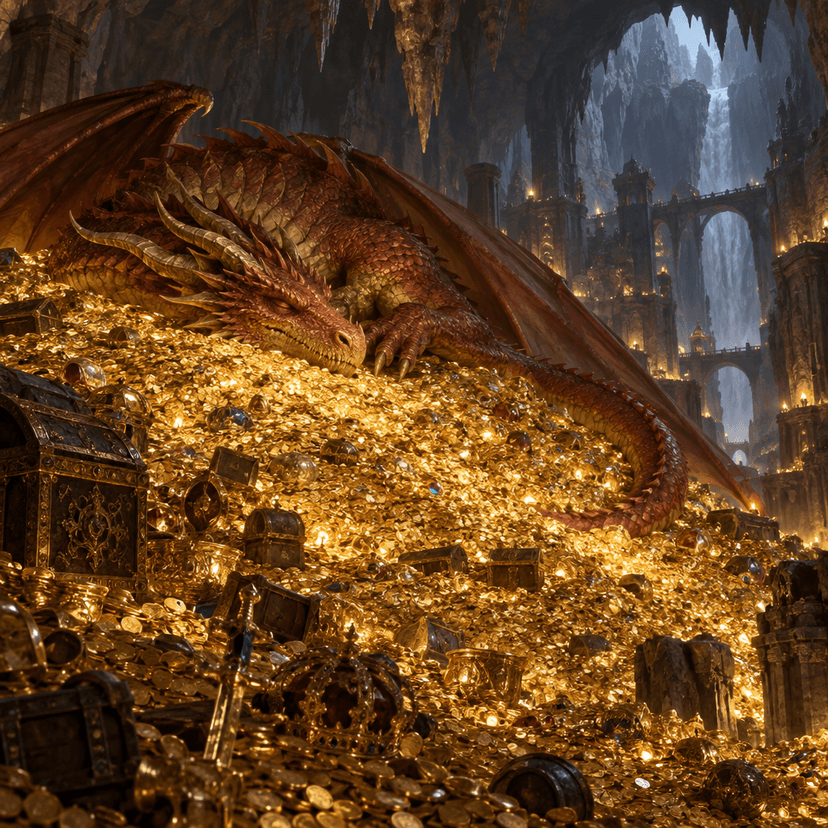
Stop Motion Studio now supports ChatGPT Images 2.5
Generate frames in sequence with Flare or Sunburst, or upload your own images. Review the timing and export a silent MP4 in Flixly Stop Motion Studio.
TL;DR
Stop Motion Studio supports AI frame generation with the GPT-Image-2.5 Flare and Sunburst API models, plus uploaded-frame projects. Use 2 to 24 frames, choose 1 to 12 frames per second, and export a silent MP4. AI uses medium quality at 1024 x 1024; each frame is a separate paid request. References do not guarantee identical characters across frames.
A paper character takes a step. A clay shape becomes a flower. A product turns toward the camera. Small changes between still images become movement when you play them in sequence.
Stop Motion Studio now supports AI frame generation with Flare and Sunburst, the GPT-Image-2.5 API models introduced with ChatGPT Images 2.5. Generate frames in order or upload your own images, preview their timing, and export a silent MP4.
Open Stop Motion Studio with Flare or with Sunburst. Each link selects the model for your new AI project. For individual images and revisions, see the ChatGPT Images 2.5 update.
Plan one movement at a time
Start an AI project with a scene description and an action for each frame. Small, specific changes give you something clear to inspect as the sequence develops.
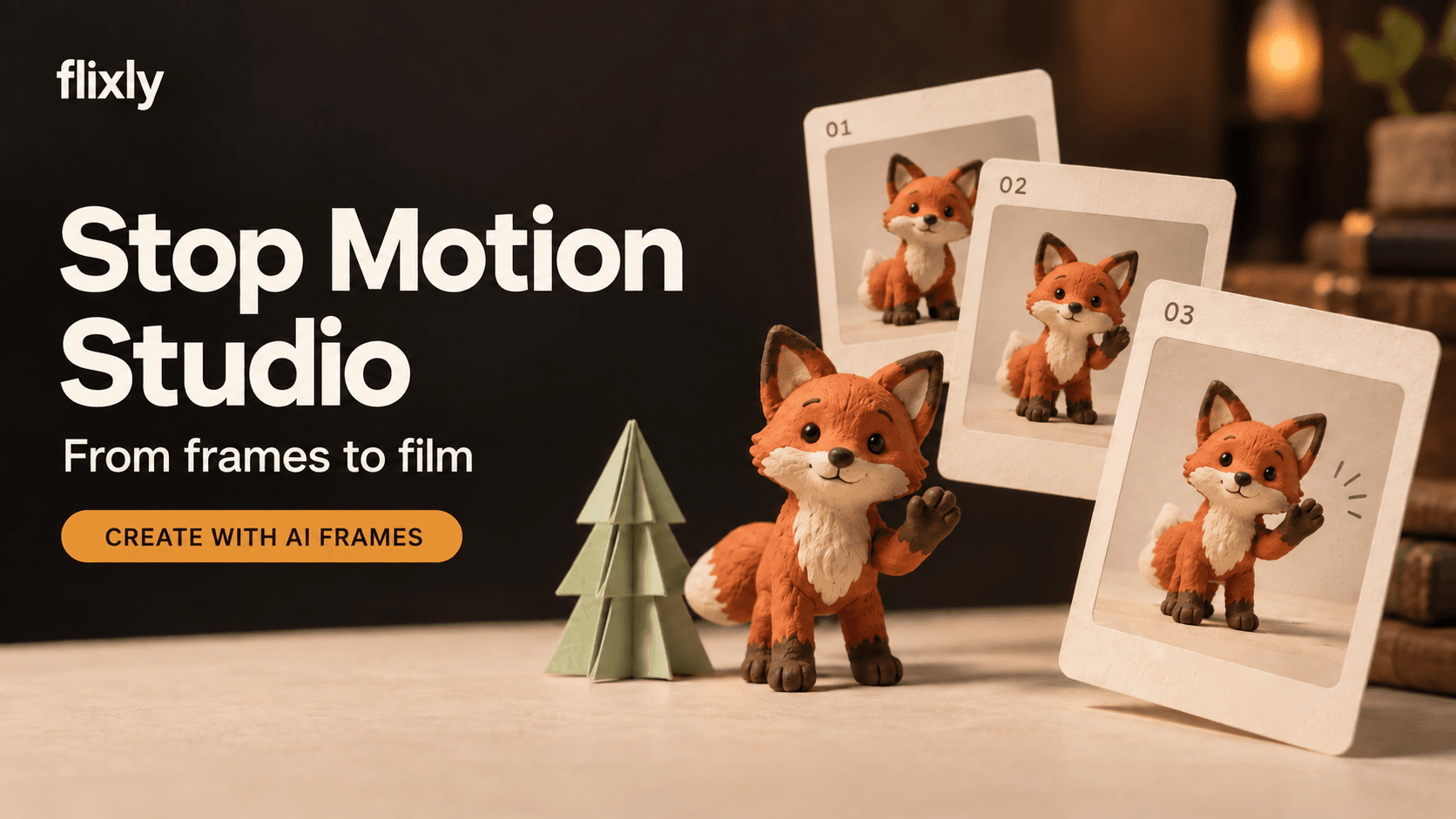
Generated starting-frame example: a clay fox with Sunburst
This single image was generated with GPT-Image-2.5 Sunburst at medium quality, 1024 x 1024, with an opaque background and PNG output. Its prompt was:
A small orange clay fox standing beside a paper tree, fixed camera, soft light, simple background, full body.

This is the opening frame of the finished clip below. To make an individual image, open Sunburst in the Image Generator.
Watch the finished three-frame fox storyboard
The opening image and two sequential Sunburst edits make this short clip. Watch the fox lift a front paw, then place it a small step forward.
Download the three-frame fox video. The silent MP4 is 1.5 seconds at 2 fps, with each of its three frames held for half a second. Press Play to watch it repeat; the downloaded file contains one pass.
Frame 2 uses the opening image as its reference. Frame 3 uses the previous frame first and the opening frame as an additional reference. The frames are assembled with hard cuts, without generating extra motion between them.
Try the frame actions yourself
Open Sunburst Stop Motion, choose three frames, and use the fox prompt above as your scene description.
Enter these actions for the three frames:
| Frame | Action prompt |
|---|---|
| 1 | Establish the fox standing still with all four paws on the ground beside the paper tree. Keep its whole body and the tree visible. |
| 2 | Lift the front paw nearest the camera off the tabletop. Keep the fox's body, other paws, paper tree, camera, and lighting in the same positions. |
| 3 | Move that raised paw a small distance forward and place it on the tabletop. Keep the other paws, tree, camera, lighting, and framing unchanged. |
Try the same plan with Flare Stop Motion if you want to compare your own outputs. At 2 frames per second, the three frames play as a 1.5-second clip.
Choose Flare or Sunburst and review the credit quote before selecting Generate sequence. The studio creates the opening frame, then generates later frames as edits using the previous image and, when different, the opening image as references.
These references communicate the intended character, scene, and composition. They do not guarantee identical characters, lighting, or details in every frame. Review the sequence before exporting it.
AI frames use medium quality at 1024 x 1024, with opaque PNG output. The video's square, landscape, or portrait canvas is a separate choice; changing it does not regenerate the images.
Review the sequence and its cost
Each AI-generated frame is a separate paid image request. The studio shows a quote for the remaining frames before you start or resume. The total depends on the chosen model and the number of frames still to generate.
You can pause after the current frame to inspect the results. A pause does not cancel an image request already in progress. Completed frames remain in the project, and you can revise actions for frames that have not been generated before continuing.
Completed AI frames stay fixed within their sequence in this release. To redo completed frames, start a new project; its generated frames are separate paid requests. Start with a short idea so you can check the look and movement before planning a longer sequence.
Or start with images you have
The uploaded-frame workflow assembles your own photographs, illustrations, or generated images. Add 2 to 24 frames, put them in order, and preview the sequence. Uploads accept PNG, JPEG, and WebP files up to 4 MB each.
Uploading a frame does not call an AI image model. In an uploaded-frame project, you can reorder or remove images and make another cut. You can also prepare source images with Flare or Sunburst before uploading them to the studio.
Prompt example: a source illustration
In Flare's Image Generator, try:
A square illustration of one small red paper sailboat on a flat blue paper pond. Three-quarter view, simple cut-paper shapes, soft shadows, pale cream background. Keep the whole boat visible with room around it. No text, waves, people, or extra boats.
Prompt example: a focused source-image edit
Open Flare editing or Sunburst editing, add your source image, and try:
Change only the boat's red sail to mustard yellow. Keep the sail's shape and folds, the hull, pond, camera angle, lighting, shadows, and all object positions unchanged. Add no objects or text.
These are separate image-generation and editing prompts. Review each result before using it as an uploaded frame; the instructions do not guarantee every detail will stay identical.
Set the timing and export
Choose a playback speed from 1 to 12 frames per second. A lower setting holds each image longer; a higher setting moves through the same sequence sooner. Changing playback speed does not generate extra images or invent movement between them.
The square, landscape, and portrait settings control the video canvas. The assembly keeps each image's proportions and adds space around it when needed.
Export a silent MP4 assembled from your frames. There is no generated soundtrack or motion interpolation. Timing comes from your frame order and playback speed: 12 frames at 6 frames per second make a two-second video.
Download the MP4 or save it to History. Saved projects let you return to the sequence and adjust playback later.
Questions
Is ChatGPT Images 2.5 available in Stop Motion Studio now?
Yes. Flixly now offers the GPT-Image-2.5 Flare and Sunburst API models for AI frame generation and sequential editing. ChatGPT Images 2.5 is the product name from OpenAI's announcement; Flare and Sunburst are the API models used here.
Do I need an AI model to assemble an animation?
No. Choose the uploaded-frame workflow to assemble images you provide. AI generation is a separate way to create the frames.
Does changing the frame rate cost another image generation?
No. Playback speed changes how long the existing frames appear. It does not generate more images.
Will a character look exactly the same in every generated frame?
That is not guaranteed. The opening and previous frames provide references, but generated edits can still change details. Inspect the sequence before exporting.
Does the MP4 include music or speech?
No. The studio assembles a silent video. You can add audio in a separate editing workflow afterward.
Start a sequence with Flare or choose Sunburst. To assemble existing images, switch to the uploaded-frame workflow in the studio.
Frequently Asked Questions
Is ChatGPT Images 2.5 available in Stop Motion Studio now?▾
Yes. Flixly offers the GPT-Image-2.5 Flare and Sunburst API models for AI frame generation and sequential editing. AI frames use medium quality at 1024 x 1024 with opaque PNG output.
Do I need an AI model to assemble an animation?▾
No. Choose the uploaded-frame workflow to assemble images you provide. AI generation is a separate way to create frames.
Does changing the frame rate generate more images?▾
No. It changes how long the existing frames appear. It does not call an AI image model or create motion between frames.
How are AI frames billed?▾
Each generated frame is a separate paid image request. Review the quote for the remaining sequence before starting or resuming. A pause takes effect after the current frame. To redo completed AI frames, start a new project; its generated frames are billed separately.
Will the generated character stay exactly the same?▾
That is not guaranteed. The opening and previous frames provide references, but generated edits can change details. Review the sequence before exporting.
Does the video include audio?▾
No. The studio assembles a silent MP4 from the selected frames.