GPT Image 2.0 vs 2.5 Flare vs Sunburst: Specs & Examples
Compare model strengths, Flixly input limits, quality and size settings, editing references, and output formats for GPT Image 2.0, Flare, and Sunburst, with real dragon examples.
TL;DR
Sunburst is OpenAI's precision-focused image model for premium visual work and extra fidelity on intricate detail, in exchange for longer generation times. Flare is OpenAI's default for most applications: fast, high-quality generation with natural lighting, rich textures, complex layouts, and transparent backgrounds. Flixly currently offers both at medium quality, 1024 × 1024, one output, and up to four source images for edits. Compare the available inputs, settings, outputs, and three original dragon examples below.
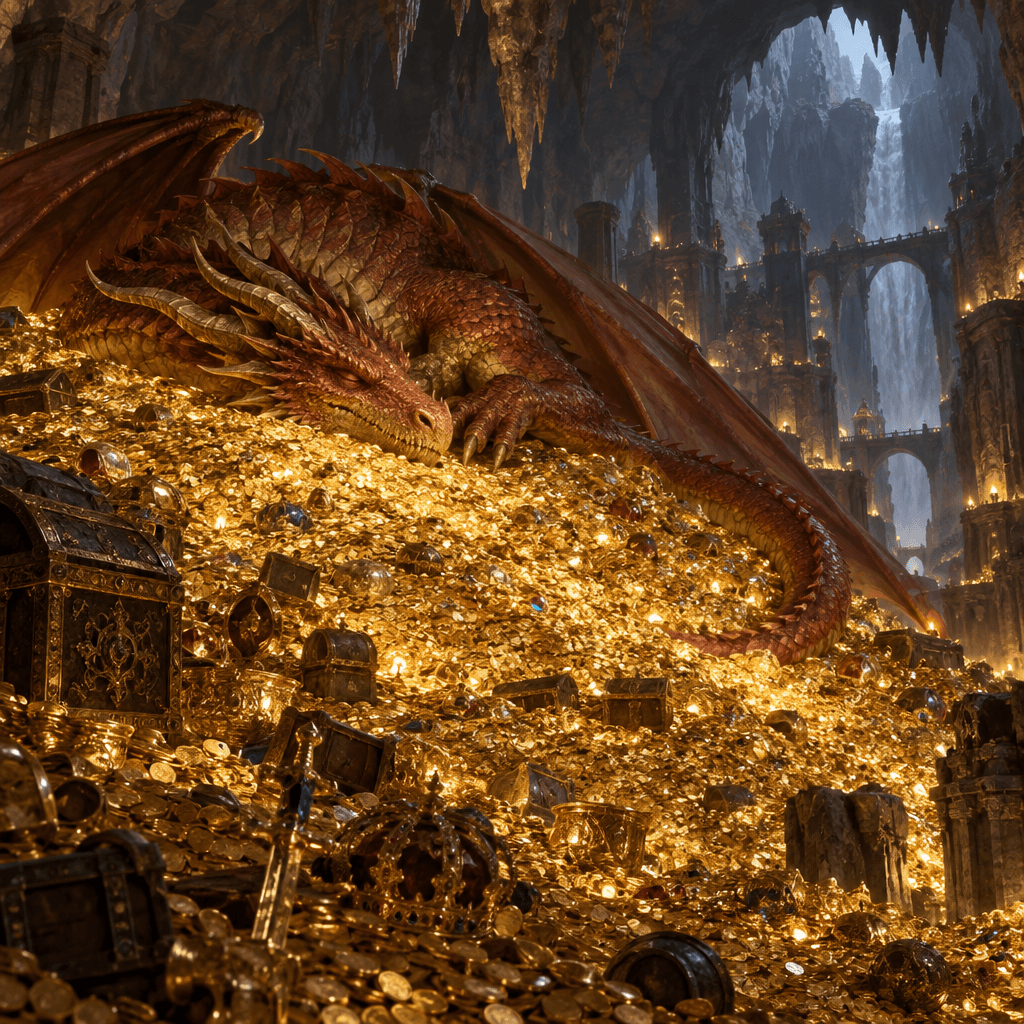
This GPT Image 2.0 vs GPT Image 2.5 Flare vs Sunburst comparison covers model strengths, the inputs and settings available in Flixly, editing limits, and output formats. It also shows three existing generations made with the same prompt:
A dragon sleeping on a mountain of gold in a vast cavern
What actually changes between GPT Image 2.0, Flare, and Sunburst?
OpenAI positions the two 2.5 variants for different needs:
GPT Image 2.5 Sunburst — precision for premium visual work
OpenAI's precision-focused image model, built for premium visual work, extra fidelity on intricate detail, in exchange for longer generation times. OpenAI's model positioning.
GPT Image 2.5 Flare — the default for most applications
OpenAI's default image model for most applications. Fast, high-quality generation with natural lighting, rich textures, and support for complex layouts including transparent backgrounds. OpenAI's model positioning.
For most applications, start with Flare. Choose Sunburst when intricate detail and premium visual fidelity justify a longer wait. OpenAI also reports up to 50% lower latency for Flare compared with GPT Image 2. This is OpenAI's published comparison; the three saved dragon images do not measure that latency claim. OpenAI's launch announcement.
Flare and Sunburst currently have the same controls in Flixly. Their main distinction is how they balance generation time and visual precision. GPT Image 2.0 has a different set of size and quality controls, detailed below.
Technical comparison: inputs, values, and outputs in Flixly
These are the Image Generator controls as of September 8, 2026. The available options can change, so check the selected model and its credit quote before generating.
| Setting | GPT Image 2.0 | GPT Image 2.5 Flare | GPT Image 2.5 Sunburst |
|---|---|---|---|
| Text-to-image input | Text prompt | Text prompt | Text prompt |
| Prompt limit | Up to 5,000 characters | 2–5,000 characters | 2–5,000 characters |
| Quality choices shown | Low, medium, high; default medium; availability depends on the selected generation settings | Currently medium | Currently medium |
| Image size | 1K, 2K, 4K and aspect-ratio choices where available | Currently 1024 × 1024 pixels | Currently 1024 × 1024 pixels |
| Images per request | Single-result workflow | One | One |
| Editing input | Instruction plus source image | Instruction plus source image | Instruction plus source image |
| Source images per edit | One primary image plus up to three references | One primary image plus up to three references | One primary image plus up to three references |
| Upload formats | JPEG, PNG, WebP | JPEG, PNG, WebP | JPEG, PNG, WebP |
| Upload size limit | 10 MiB per file | 10 MiB per file | 10 MiB per file |
| Background selector | Unavailable in this workflow | Auto (default), opaque, transparent | Auto (default), opaque, transparent |
| Output-format controls | No consistent selectable format across all generation settings; check the downloaded file | PNG (default), JPEG, WebP | PNG (default), JPEG, WebP |
| Transparent output selection | No background selector | Select transparent with PNG or WebP | Select transparent with PNG or WebP |
| Continue from a result | Edit this result | Edit this result | Edit this result |
| Mask or drawing editor | Unavailable in this workflow | Unavailable in this workflow | Unavailable in this workflow |
| Compression slider or streaming preview | Unavailable in this workflow | Unavailable in this workflow | Unavailable in this workflow |
Check the current controls in GPT Image 2.0, Flare, or Sunburst. The ChatGPT Images 2.5 launch guide explains the released image controls and editing workflow.
What those values mean for your image
Quality and dimensions are separate choices. The current Flare and Sunburst release uses medium quality at 1024 × 1024 pixels: a square image containing 1,048,576 pixels. Changing the file format does not increase its dimensions. Broader quality and size choices are not currently selectable for these two models in Flixly.
Background and file format work together. Choose PNG or WebP when you need transparency. JPEG does not support a transparent background. For an opaque image, Flare and Sunburst also offer JPEG. A fantasy scene such as the dragon example can use the default automatic background and PNG output.
Editing accepts up to four source images total. Start with the image to change, then add up to three references. Each uploaded file must be JPEG, PNG, or WebP and within the 10 MiB limit. State which image is the scene and what each reference should influence. For example:
Use the first image as the scene to edit and the second as a lighting reference. Keep the sleeping dragon, gold mound, and cavern layout. Change only the lighting to match the reference.
These reference images guide generation; inspect the result to confirm that the details you wanted to keep survived the edit. Use Edit this result to continue working from a generated image. The launch guide covers the steps.
Example settings and expected output
Use the following settings to try the dragon prompt with either 2.5 model:
| Control | Example value |
|---|---|
| Model | GPT Image 2.5 Flare or GPT Image 2.5 Sunburst |
| Prompt | A dragon sleeping on a mountain of gold in a vast cavern |
| Quality | Medium |
| Dimensions | 1024 × 1024 |
| Background | Auto |
| Output format | PNG |
| Result count | One image |
The expected result is one square PNG image, which you can download or use as the starting point for another edit. The three saved examples below are all PNG files; the older GPT Image 2.0 result has different dimensions and an unrecorded quality setting, as shown in its comparison table.
Credits and generation time
Flixly displays the credit quote for the selected model and supported settings before you generate. Check that quote for each request; each generation or edit is a separate request. The saved images below are examples of visual output, so they do not establish a price or speed ranking.
For model selection, use OpenAI's stated tradeoff: Flare emphasizes fast, high-quality generation for most applications; Sunburst prioritizes premium visual precision with longer generation times. OpenAI's announcement.
The prompt and the comparison
Flixly labels the older model GPT-Image 2.0. GPT-Image-2.5 Flare and GPT-Image-2.5 Sunburst are the models introduced with ChatGPT Images 2.5.
The prompt asks for three things: a sleeping dragon, a mountain of gold, and a vast cavern. It does not specify the dragon's color, lighting, camera position, architectural details, or an art style. Those open choices make this a useful scene to compare.
These are three existing generations with the exact prompt above. The GPT Image 2.0 result was created on July 23, 2026; Flare and Sunburst's results were created on September 8. We have kept each image's original framing.
| Saved result | Actual image | Recorded quality |
|---|---|---|
| GPT Image 2.0 | 1024 x 768, landscape PNG | Not recorded |
| GPT Image 2.5 Flare | 1024 x 1024, square PNG | Medium |
| GPT Image 2.5 Sunburst | 1024 x 1024, square PNG | Medium |
Flare and Sunburst also share an automatic background setting and one-image output. The different framing and incomplete 2.0 quality record matter: this is a comparison of these saved images, rather than a controlled quality or speed benchmark.
Three images, three interpretations
GPT Image 2.0: a darker dragon in a wide cavern scene

GPT Image 2.0 gives the scene a darker, earthier palette. A bronze-brown dragon rests its head toward the left, while a large wing sweeps across the right and its tail curves around the front of the gold pile. Its closed eye and lowered head clearly communicate sleep.
Pale daylight enters from the upper left, catching the horns, scales, and treasure. The wide frame leaves room for the cave's rock walls and a strip of bare floor at the bottom. A chest on the left and a large jeweled vessel on the right anchor the foreground.
The result feels spacious and subdued beside the brighter red-and-gold 2.5 examples. Its landscape framing contributes to that difference, so it is worth separating your preference for the crop from your preference for the rendering. Try GPT Image 2.0.
GPT Image 2.5 Flare: a centered dragon and a broad treasure foreground

Flare puts the copper-red dragon's head near the center, with its body and tail curling around it. The resting head and narrowed eye make the sleeping pose easy to read. Gold fills the lower half of the image, with chests, vessels, pearls, and scattered gems breaking up the coins.
The lighting does much of the storytelling. Warm gold reflections illuminate the dragon from below, while a cool opening on the right leads the eye deeper into the cavern. A distant bridge and torchlit structures give the space a sense of scale. Those architectural details are additions from the model; the prompt never asked for them.
This result gives the dragon's face a strong place in the composition while leaving plenty of treasure to explore. Try GPT Image 2.5 Flare.
GPT Image 2.5 Sunburst: a steeper gold mound and layered cavern depth

Sunburst uses a similar warm-and-cool palette, but changes the arrangement. The dragon's head sits further left, its rounded shoulder and foreclaw stand out, and the treasure forms a pronounced slope down toward the viewer. A large crown in the foreground gives the pile a recognizable focal object.
Its tail follows the right edge of the gold mound. Behind it, bridges at different heights and distant structures make the cavern feel layered. The foreground is softer than the area around the dragon, which gives the scene a sense of depth without making every coin equally prominent.
For the phrase "a mountain of gold," the sloping pile is a particularly clear visual choice. Try GPT Image 2.5 Sunburst.
The visible differences at a glance
| Detail | GPT Image 2.0 | GPT Image 2.5 Flare | GPT Image 2.5 Sunburst |
|---|---|---|---|
| Dragon | Dark bronze-brown, head lowered left | Copper-red, head nearer the center | Copper-red, prominent shoulder and foreclaw |
| Treasure | Broad mound, with bare floor below | Broad, bright foreground filled with treasure | Steeper slope with a foreground crown |
| Cool light | Enters from the upper left | Large opening on the right | Opening and layered structures on the right |
| Composition | Wide view, tail arcs across the front | Curled dragon above a dense foreground | Strong diagonal mound and descending tail |
For this particular scene, choose the 2.0 image if you prefer the darker palette and wider environment, Flare's image if you want the face nearer the center, or Sunburst's image if the steep treasure mound and layered background are the main draw. All three communicate the brief; the strongest choice depends on which composition you want to use.
Start with the brief. Is the dragon visibly resting? Does the gold read as a substantial mound? Can you see enough surrounding space to understand the cavern's scale? Then look at details such as the claws, scales, coins, and the separation between objects.
All three introduce architectural details; bridges are especially prominent in Flare and Sunburst. That enriches this fantasy scene, but it would be a mismatch if you wanted an untouched natural cave. A useful follow-up instruction would be: "Keep the cavern entirely natural, with no bridges, buildings, torches, or people." That is a prompt to try, not a result shown in this article.
Try the same scene in Flixly
Open GPT Image 2.0, Flare, or Sunburst. Each link selects the model. Copy the exact dragon prompt above, review the available settings and current credit quote, then generate.
For your own comparison, keep the prompt and supported output settings as consistent as possible, and compare more than one result before choosing a model for repeated work. This dragon scene gives you a starting point for judging composition; a different prompt may favor a different result.
If you want to revise a result, the ChatGPT Images 2.5 guide explains image controls and Edit this result. To turn still images into a short frame sequence, see the Stop Motion Studio guide.
Frequently Asked Questions
When should I choose Sunburst instead of Flare?▾
Choose Sunburst for premium visual work where extra fidelity on intricate detail and precise editing justify longer generation times. Flare is OpenAI's default image model for most applications, offering fast, high-quality generation with natural lighting, rich textures, complex layouts, and transparent backgrounds.
What are the technical differences between GPT Image 2.0, Flare, and Sunburst?▾
OpenAI positions Flare for fast, high-quality generation and Sunburst for premium visual precision with longer generation times. In Flixly, GPT Image 2.0 offers 1K, 2K, and 4K choices where available, with low, medium, and high quality in the selector. Both 2.5 models currently use medium quality at 1024 × 1024 and offer PNG, JPEG, or WebP with background controls.
Do Flare and Sunburst have different controls in Flixly?▾
They currently have the same controls: a 2–5,000-character prompt, medium quality, 1024 × 1024 output, PNG/JPEG/WebP, and auto/opaque/transparent backgrounds. Editing accepts one primary image and up to three references, with JPEG, PNG, or WebP uploads up to 10 MiB each.
What output do I get from Flare or Sunburst in Flixly?▾
Each request returns one 1024 × 1024 image at the current medium-quality setting. PNG is the default output format; JPEG and WebP are also available. Choose PNG or WebP when selecting a transparent background. You can download the image or continue with Edit this result.
Can I choose higher quality or larger dimensions for Flare and Sunburst in Flixly?▾
The current release offers medium quality at 1024 × 1024 for both models. Check the live Image Generator for available options and the current credit quote before each request.
What prompt is used in this comparison?▾
A dragon sleeping on a mountain of gold in a vast cavern. The prompt leaves color, camera position, lighting, and architectural details open to each model.
Were the settings identical for all three images?▾
The prompt matches across all three saved tasks. The 2.0 image is a 1024 x 768 landscape PNG, and its quality setting was not recorded. Flare and Sunburst are 1024 x 1024 square PNGs generated at medium quality with automatic backgrounds. The article preserves the original framing.
Are GPT Image 2.5 Flare and Sunburst the same as ChatGPT Images 2.5?▾
ChatGPT Images 2.5 is the product name. GPT-Image-2.5 Flare and GPT-Image-2.5 Sunburst are the API models introduced alongside it and offered in Flixly.
Does one dragon image prove which model is best?▾
No. These are individual examples for comparing visible composition and scene details. Try several prompts and more than one result before choosing a model for repeated work.
Can I try the same prompt with each model?▾
Yes. The model links in this post open Flixly's Image Generator with GPT Image 2.0, Flare, or Sunburst selected. Copy the dragon prompt, review the supported settings and current credit quote, then generate.