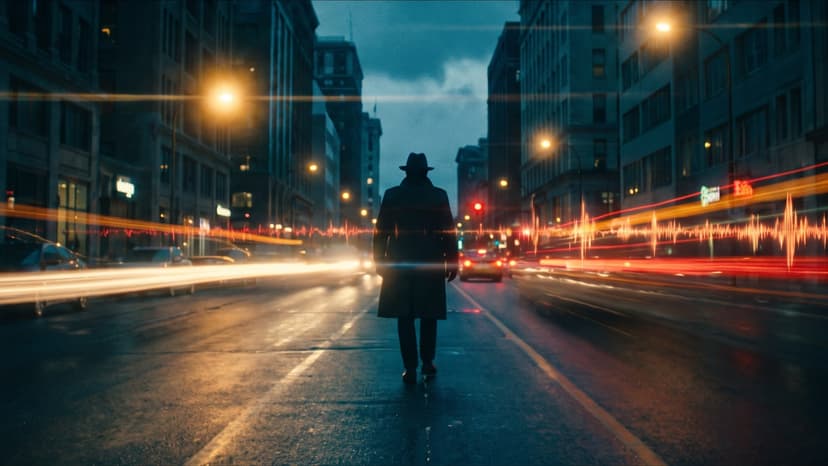
Blockout Studio: Turn a Story Into a 3D Blockout, Then a Video
One story prompt becomes a moving 3D blockout you can stage like previs: mannequins for your cast, objects for the set, an eye-level camera. Then a video model renders every shot to match it. Two real examples, side by side.
TL;DR
Blockout Studio on Flixly turns a story prompt into a 3D blockout with mannequins, set objects and a camera. You adjust it, then a reference-video model such as MiniMax H3 Max or Seedance 2.5 renders each scene to follow it, with your characters' looks. Objects are tinted with the colour their names give them, so a red mailbox renders red. Projects save as you work and scenes join into one episode.
Short answer: Blockout Studio turns one story prompt into a moving 3D blockout: grey mannequins for your characters, simple shapes for the set, and a camera that follows the action. You adjust it like a previs scene, then a video model renders each shot to match it. The model follows where everyone stands, how they move and where the camera goes, and paints your cast and set in on top.
Text-to-video is great at "make something like this". It is much worse at "put her here, have him walk there, and keep the camera at eye level". Blockout Studio gives you that control without opening Blender. Every example below was made in Blockout Studio on Flixly in October 2026, with the first result shown and no editing apart from the labels.
How it works
- Write the story. Say who is in it, where it happens and what they do, scene by scene. A plan can have up to 8 scenes.
- Plan the scenes. Flixly writes a shot plan for every scene: the set, the objects, each character's path with timing, and the camera.
- Bring your cast. Import characters and places you made in Story Creator, or generate a full-body look for each character with the image model you choose, such as Nano Banana 2.1.
- Adjust the blockout. Play the scene, drag objects and waypoints in 3D, add characters or objects, and change the camera.
- Render. Pick a video model and render one scene or all of them. The recorded blockout is sent as a reference video, with your characters' looks as reference images.
- Join the episode. When every scene is ready, join them into one MP4.
Example 1: a greeting at a rainy bus stop
The whole prompt:
One short scene, about 6 seconds. On a rainy city sidewalk at dusk, a young woman in a yellow raincoat walks toward a bus-stop shelter where a tall man in a dark coat is waiting. She waves, he turns and waves back.
Flixly planned one 6-second scene with two characters, a bus shelter, a bench, a sign post and a street tree, with an eye-level camera tracking her walk. We generated the two looks and rendered with MiniMax H3 Max. Left is the blockout, right is the final video:
The staging carried over: she enters on the left and walks past the tree, he waits in the shelter on the right, and the camera drifts with her. The model read the grey box as a glass bus shelter and the cone as a bare street tree, from their names in the plan.
Example 2: a street you dress yourself
This one started small:
One short 5-second outdoor scene on a quiet suburban street on a sunny morning. A boy in a red hoodie walks along the sidewalk.
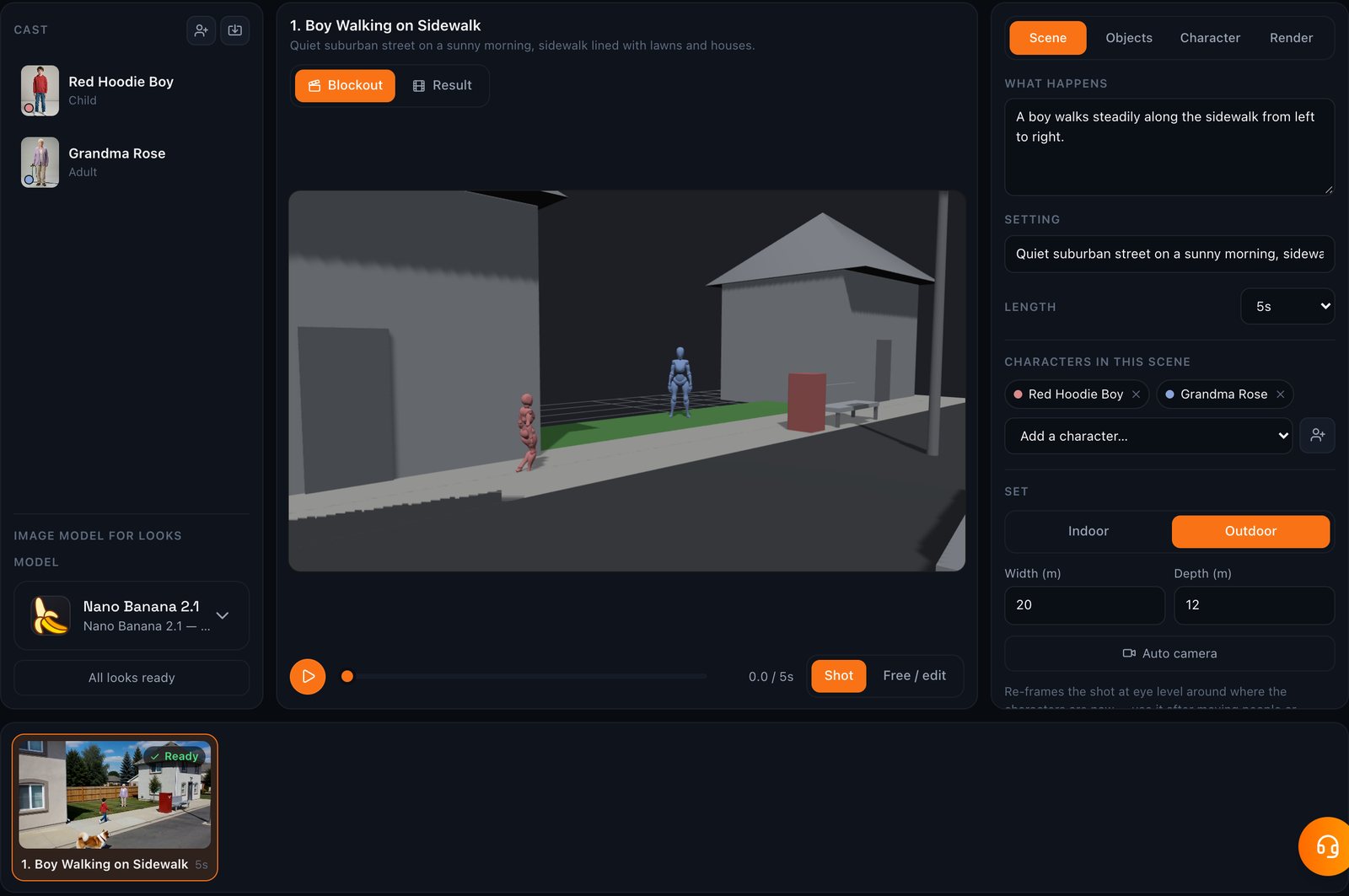
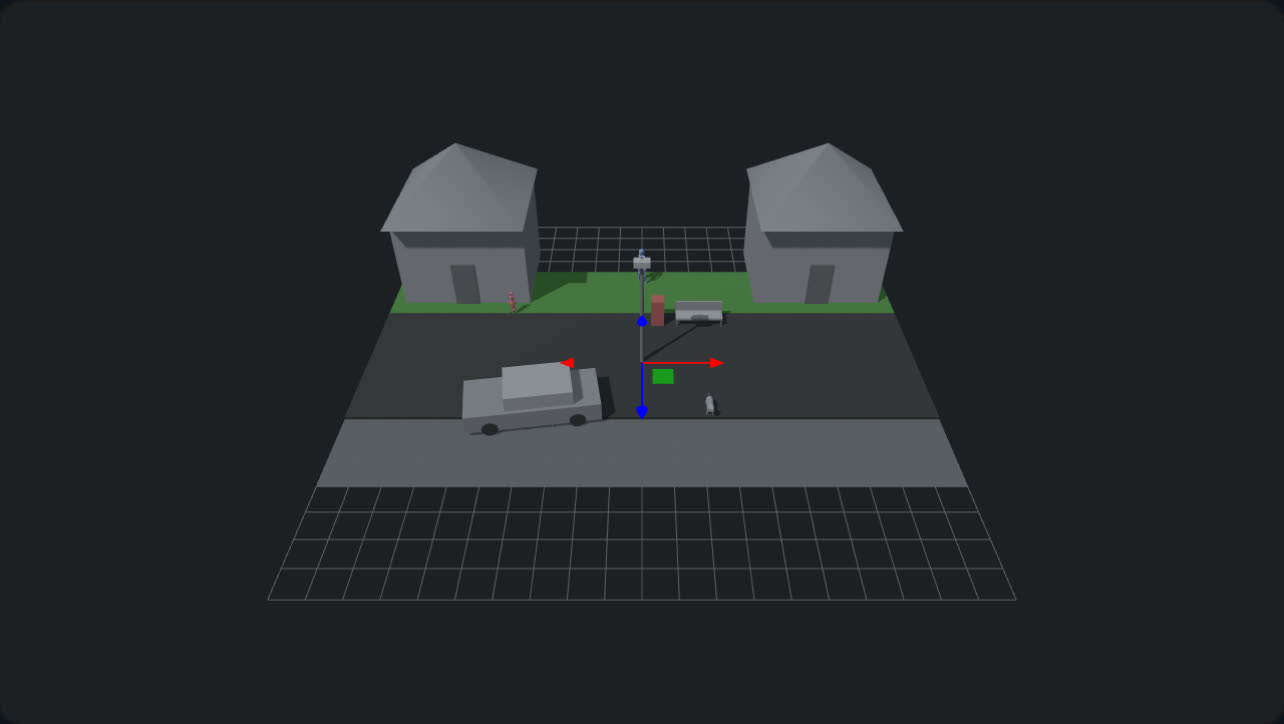
The plan already laid a concrete sidewalk, a grass lawn, an asphalt street and two houses. Then we dressed the set by hand: a street lamp, a parked car, a bench and a dog from the object library, plus a custom "red mailbox". We also added a second character, "Grandma Rose, in her 70s, lavender cardigan, holding a garden hose", and pressed Auto camera to re-frame the shot around everyone.
Here is the same scene from above, the way you see it in the editor's free camera:
What we learned: grey shapes come out grey
Our first render of the suburban street had a problem. The video model copied the blockout's grey along with its shapes: the bench and the street lamp came out plain grey, and the mailbox never appeared.
Telling the model in the prompt that grey is only a placeholder helped a little: the bench became dark painted metal. What fixed it was putting the colour into the blockout itself. Blockout Studio now tints every object with the colour or material its name gives it: "red mailbox" is red, "grass lawn" is green, "asphalt street" is dark, "concrete sidewalk" is pale stone. On the next render, the mailbox came back as a big red mailbox, the street turned into real asphalt, and the sidewalk into concrete.

Tip: name objects with their colour or material ("wooden fence", "white van", "blue door"). The name is what the video model is told the object is, and the colour goes straight into the blockout.
Build the set: objects, characters and the camera
Objects. The object library has 30 ready-made stand-ins in six groups:
- Street: road, sidewalk, crosswalk, street lamp, bus stop, fence
- Nature: tree, bush, rock, grass, water
- Vehicles: car, bus, truck, bicycle, airplane
- Furniture: bench, chair, sofa, table, desk, bed
- Buildings: house, wall, door, column, stage
- Animals: dog, horse, dinosaur
Sizes are in real-world metres. For anything else, add a custom object: give it a name, pick the closest shape (box, flat ground, seat, vehicle, animal and so on) and set its size. Each object can be renamed, resized, rotated, duplicated or deleted, and dragged on the stage.
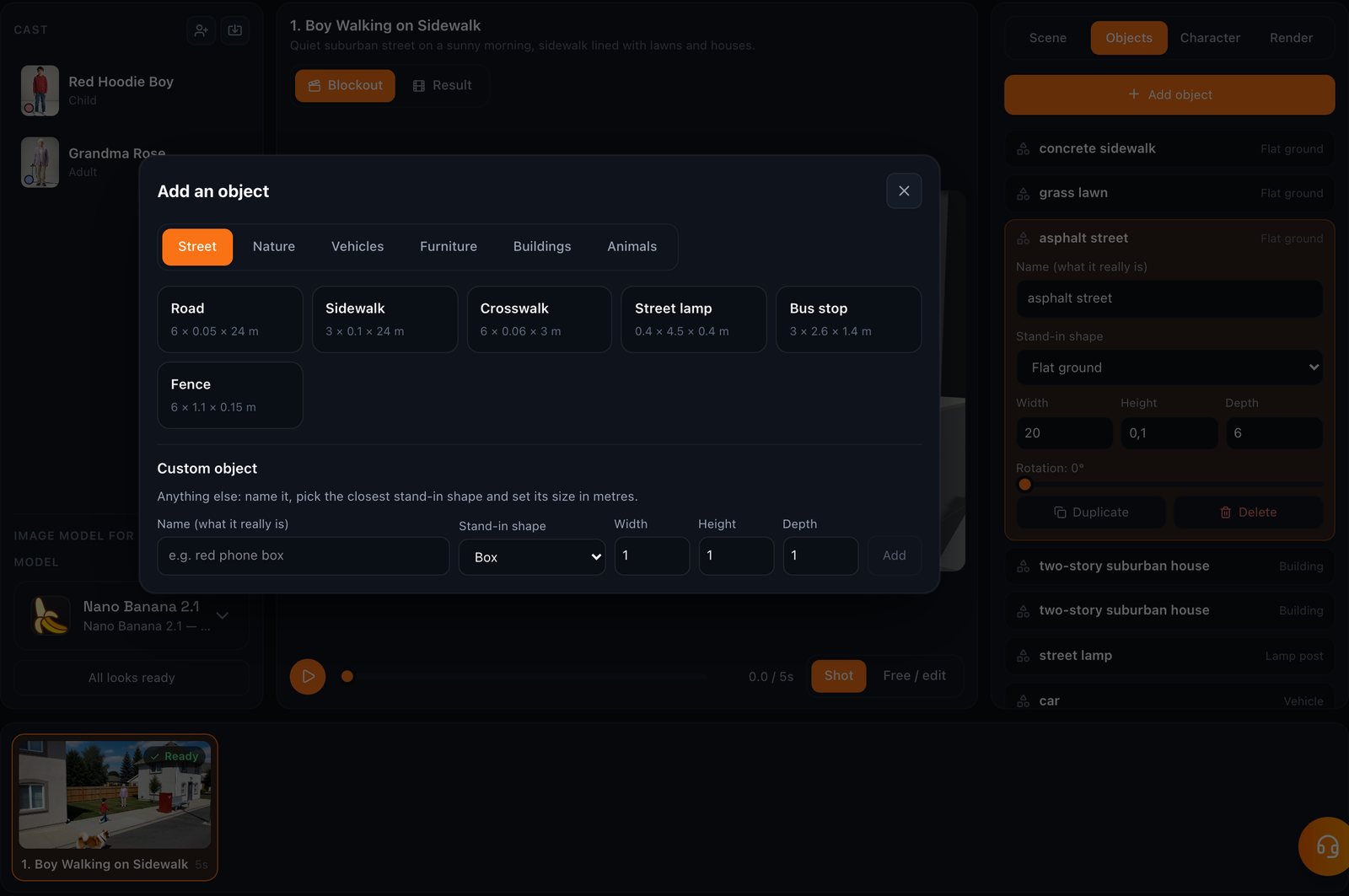
Characters. Each character has a colour on the stage. The colour is what links a mannequin to that character's look image, so the model knows the red figure is the boy and the blue figure is Grandma Rose. You can add any cast member to a scene, take them out, or create a new character and drop them straight into the current scene. Up to 7 characters can share one scene. Each character's path is a list of waypoints (time, position and action: stand, walk, run, sneak, crouch, look around, nod or sad), and you can drag the waypoints on the stage.
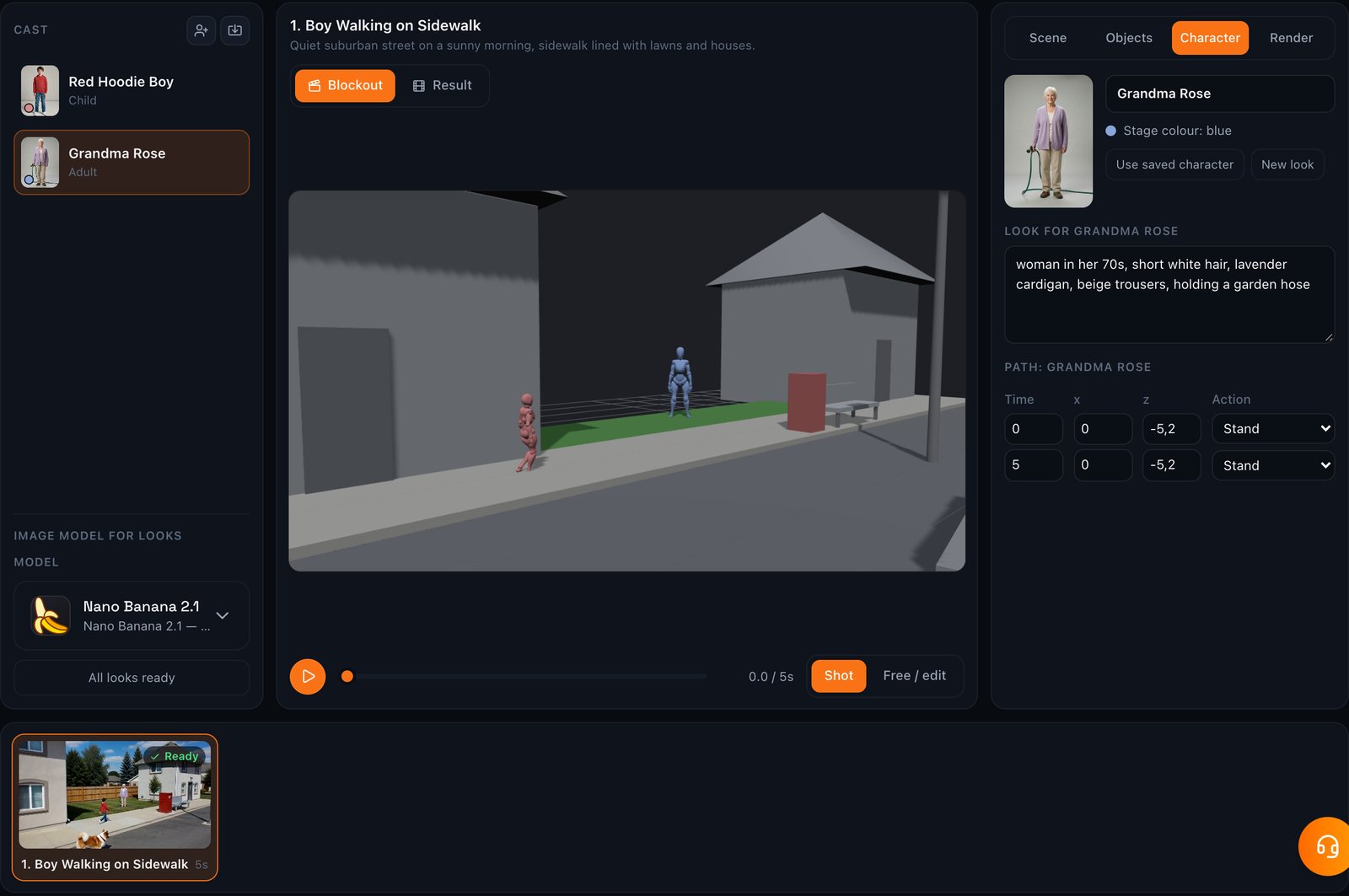
Camera and set. Choose indoor or outdoor and the size of the set. Auto camera re-frames the shot at eye level around where your characters are. That matters, because in our tests video models follow eye-level shots taken a few metres from the action most closely, and tend to reframe high, wide shots into a shot of their own.
Which video models can render a blockout
A model needs to accept a reference video to follow a blockout. In Blockout Studio you can pick:
| Model | Made by | Longest scene |
|---|---|---|
| Seedance 2.5 | ByteDance | 30 s |
| Seedance 2.0, 2.0 Fast and 2.0 Mini | ByteDance | 15 s |
| MiniMax H3 Max and MiniMax H3 | MiniMax | 15 s |
| Wan 3.0 and Wan 3.0 Prime | Alibaba | 15 s |
| HeyGen Video | HeyGen | 15 s |
| Gemini Omni Flash | 10 s |
When you switch models, Blockout Studio fits every scene to a length that model can render and tells you which scenes changed. Both examples here used MiniMax H3 Max at 720p. Its renders took between under a minute and about three minutes. Flixly shows the exact credit price for each scene and for the whole episode before you render, and every render is saved to your history.
Projects
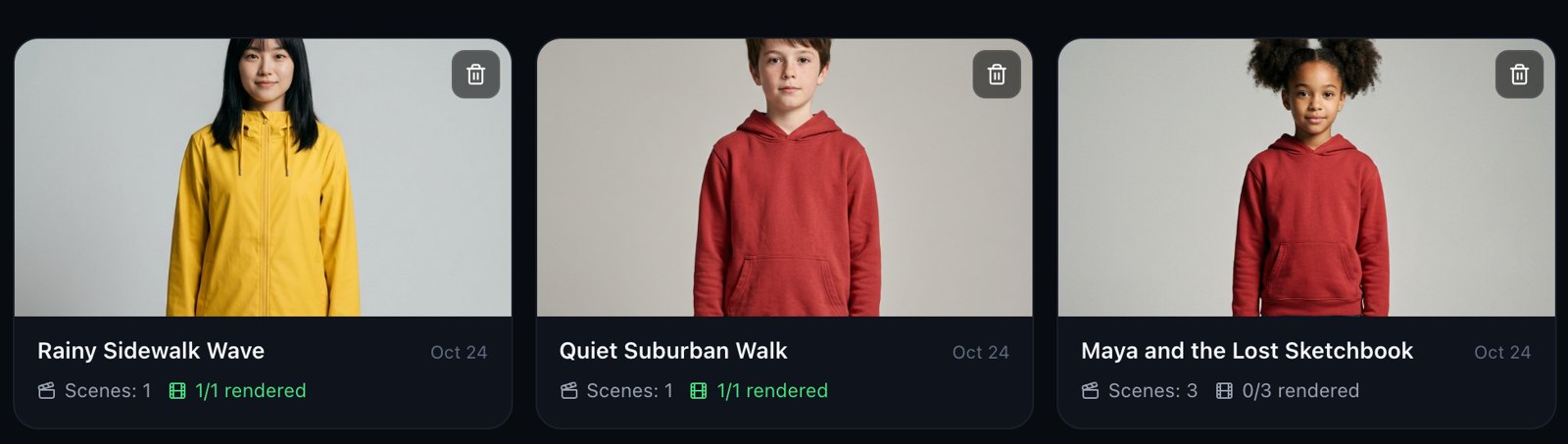
Every blockout is a project, saved to your account as you work, just like a Story Creator episode. Your projects page shows each one with its cast and how many scenes are rendered, so you can come back, change one scene and render only that one again.
Tips for better results
- Keep the camera at eye level and close. Use Auto camera after you move people or objects.
- Name things precisely, with colour or material. "Red brick house" beats "building".
- Short scenes are easier to fix. Re-render only the scene you changed.
- Describe each character's face, hair and clothes. That description makes the look image, and the look image is what keeps them consistent from scene to scene.
- Reuse your Story Creator cast. Imported characters keep their names, looks and images, so an episode in Blockout Studio matches the rest of your series.
Frequently Asked Questions
What is a 3D blockout?▾
A blockout is a rough 3D version of a shot: simple stand-in shapes for the set and plain figures for the characters, placed and moved the way the final scene should play, with the camera where it will be. Film and game teams use blockouts, also called previs, to agree on staging before anything is made for real.
How does a video model follow the blockout?▾
Blockout Studio records each scene from its camera and sends that recording to the video model as a reference video, together with one look image per character. The prompt tells the model which coloured figure is which character and what every shape really is. Models that accept a reference video then keep the staging, the movement and the camera, and render real people and places in their place.
Which video models work with Blockout Studio?▾
Any model on Flixly that accepts a reference video: Seedance 2.5 (up to 30-second scenes), Seedance 2.0, 2.0 Fast and 2.0 Mini, MiniMax H3 Max and MiniMax H3, Wan 3.0 and Wan 3.0 Prime, HeyGen Video, and Gemini Omni Flash. Scene lengths adjust automatically when you switch models.
Can I use my Story Creator characters?▾
Yes. Import characters and places you saved in your Story Library, or the cast of any of your stories. Imported characters keep their names, looks and images, and the planner writes them into the scenes as they are.
Can I add my own objects to a scene?▾
Yes. Pick from 30 ready-made objects such as roads, cars, benches, trees, houses and animals, or add a custom object with any name, the closest stand-in shape and a size in metres. You can move, rotate, resize, duplicate and delete every object, and the name you give it is what the video model is told it is.
Why do some objects come out grey?▾
Video models copy the colours of the reference video. Blockout Studio tints each object with the colour or material in its name, so naming objects with a colour or material (a red mailbox, a wooden fence, a grass lawn) gives the model the right colour to copy. Objects without one stay neutral grey, which suits metal or concrete.