HeyGen Video and HeyGen Voice Are Live on Flixly
HeyGen Video and HeyGen Voice are live on Flixly. Make 5 to 15 second clips with sound from text, a first frame or reference images, videos and audio, then add speech in 24 voices and 39 languages, or in a voice cloned from a short recording.
TL;DR
HeyGen Video and HeyGen Voice are live on Flixly now. HeyGen Video makes 5 to 15 second clips with their own sound, from 480p up to 2K, starting from text, a first frame, or up to 9 images, 3 videos and 3 audio references. HeyGen Voice reads scripts in 24 voices and 39 languages, clones a voice from a short recording, and has a faster, lower-cost Turbo tier.
HeyGen Video and HeyGen Voice are live on Flixly. HeyGen Video turns a prompt, a first frame or a set of reference images, videos and audio into a 5 to 15 second clip with its own sound, from 480p up to 2K. HeyGen Voice reads your script in 24 voices and 39 languages, or in a voice cloned from a short recording. HeyGen Voice Turbo is the faster, lower-cost tier of the same model. Make a video with HeyGen Video or try HeyGen Voice.
What's new
| HeyGen Video | HeyGen Voice and Voice Turbo | |
|---|---|---|
| Start from | Text, a first frame, or reference images, videos and audio | A script of up to 5,000 characters |
| Output | 5 to 15 second clips with sound | Natural speech |
| Quality options | 480p, 768p, 1080p and 2K | 24 library voices, or a cloned voice |
| Shapes and languages | 16:9, 9:16, 1:1, 4:3, 3:4 and 21:9 | 39 languages, detected from the text or chosen |
| Where on Flixly | AI Video Generator | Text to Speech and Voice Cloning |
HeyGen Video is built on MiniMax H3 and post-trained by HeyGen. Every clip comes with sound: ambience, effects, music and spoken lines that you write into the prompt.
See HeyGen Video in action
Every example below was made on Flixly with the prompt and settings shown under it. Each one is the first result we got, with nothing edited apart from compressing the files for the web. From clicking Generate to the finished clip, these took between 19 and 48 seconds.
Text to video, with sound
A single prompt gave us this 8-second street scene at 1080p, with sizzling woks, chatter and passing scooters on the soundtrack.
Text to video, 8 seconds, 1080p, 16:9:
Night street food market in Taipei after rain. The camera glides slowly past steaming stalls, a cook flips noodles in a flaming wok, red lanterns reflect on the wet pavement, people chat and laugh. Sizzling oil, crowd chatter and distant scooter horns.
Write the line, hear it spoken
Put dialogue in quotes and HeyGen Video speaks it. This vertical clip for social media was made at 768p, and the chef says "Dinner is served" exactly as written.
Text to video, 6 seconds, 768p, 9:16:
Vertical close-up of a chef in a busy restaurant kitchen pouring brandy into a pan, a tall burst of flame lights up her face, she smiles at the camera and says: "Dinner is served." Clatter of pans and the roar of the flame.
Bring a still image to life
In image-to-video mode your picture becomes the first frame, and the clip keeps its shape. We started from this diner photo, made on Flixly with Nano Banana 2.1.
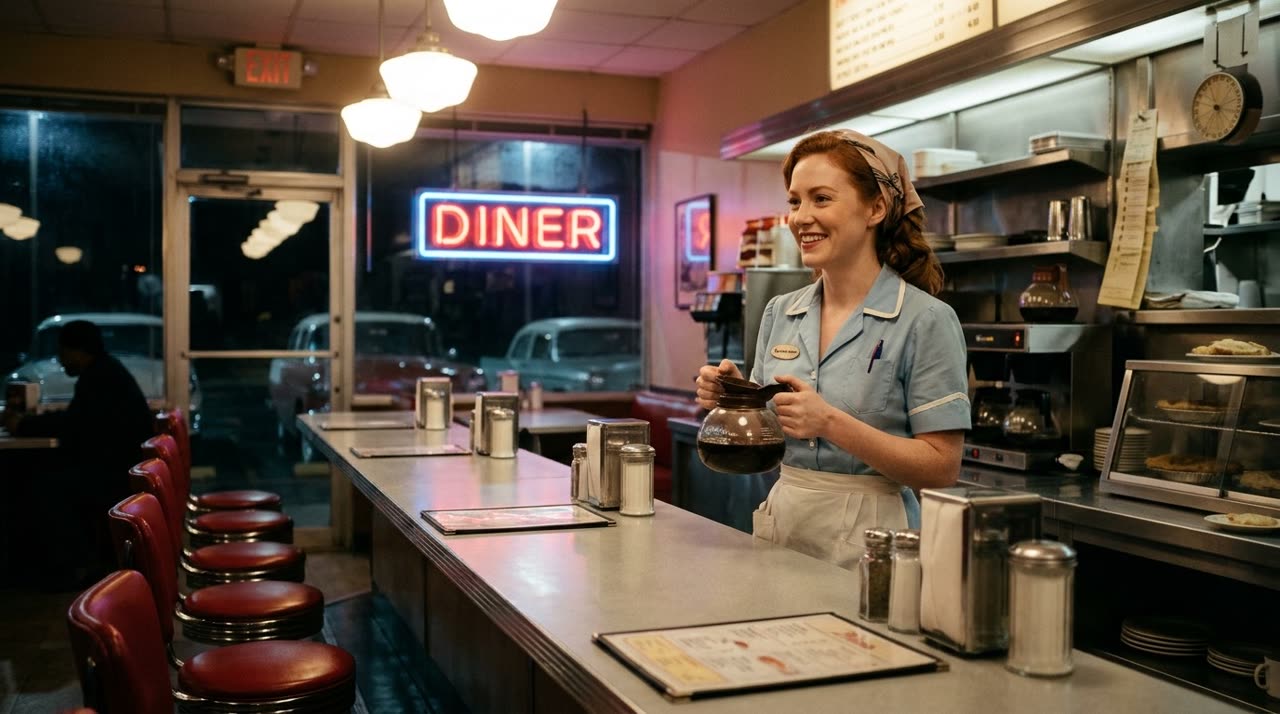
Image to video, 6 seconds, 768p:
The waitress pours steaming coffee into a white mug on the counter, looks up and laughs at a customer off camera. The neon sign flickers, a jukebox plays soft 1950s rock and roll, cups clink.
Keep your people and products in a new scene
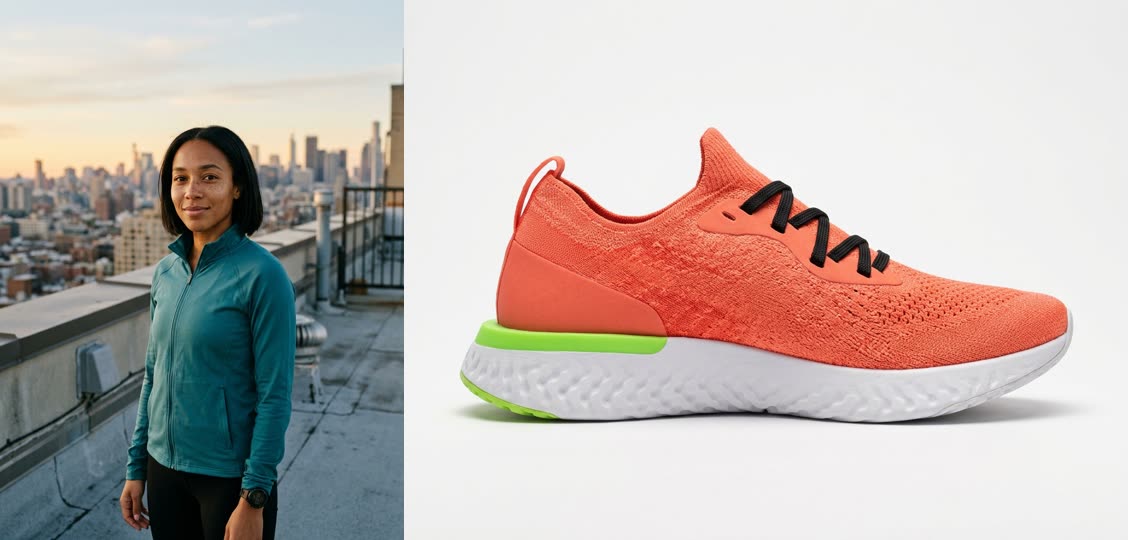
Reference-to-video takes up to 9 images, 3 videos and 3 audio clips, and builds a new scene around them. We gave it a portrait of a runner and a product shot of a sneaker. HeyGen Video kept her face, haircut and teal jacket, and the shoe's coral knit, black laces and lime heel, through a close-up and a wide shot.
Reference to video, two images, 8 seconds, 768p, 16:9:
The woman from [Image1] sits on a rooftop bench at dawn, laces up the coral sneakers from [Image2], stands and starts jogging toward the skyline. Close-up of the shoes hitting the ground, then a wide shot of her running. Footsteps, wind and distant city traffic.
On the Reference tab every upload gets a label such as [Image1], [Video1] or [Audio1]. Use those labels in your prompt to say which reference is which.
Give a character a voice
References can be sound, too. We recorded one line with HeyGen Voice, added it as [Audio1] next to the runner's portrait, and asked her to say it. She speaks the line word for word, in the same voice.
Reference to video, one image and one audio clip, 6 seconds, 768p, 9:16:
The woman from [Image1] stands on a city rooftop at dawn, catching her breath after a run, and speaks to the camera saying the line from [Audio1] in that voice. Soft wind, distant traffic.
Hear HeyGen Voice
HeyGen Voice turns a script into speech. Pick one of 24 library voices and a language, or let it detect the language from your text. Each clip below plays the voice over a card showing the exact script. The narration came out word for word, and so did every other line in this post.
HeyGen Voice and Voice Turbo, same script
The first half is HeyGen Voice and the second half is HeyGen Voice Turbo, both reading the same script in the voice Meredith. Turbo is the one to use for drafts and long scripts, and HeyGen Voice for the final read.
Other languages
The same voices speak all 39 languages. Here is Lucian in Spanish.
Clone a voice from a short recording
On the Voice Cloning page, upload a clean recording of one speaker and type what the voice should say. HeyGen Voice learns the voice from the recording, with no training step.
To keep this example free of any real person's voice, our 10-second sample was itself made with a HeyGen library voice. The clone then read two new lines that were never in the sample, one in English and one in French.
Only clone a voice that is yours, or one you have clear permission to use.
How to use them on Flixly
HeyGen Video
- Open the AI Video Generator and pick HeyGen Video.
- Choose Text, Image or Reference mode, and add your prompt, a first frame or your references.
- Set the length (5 to 15 seconds), the resolution and the aspect ratio. In image mode the clip follows the shape of your picture.
- Check the credit estimate under the settings and click Generate.
HeyGen Voice
- Open Text to Speech and pick HeyGen Voice or HeyGen Voice Turbo.
- Paste your script, then choose a voice and a language.
- Click Generate and download the audio when it is ready.
To use your own voice, open Voice Cloning, upload a 10 to 30 second recording of one speaker, and type the new script.
Tips for better results
- Write the sound into the prompt. Name the ambience, effects and music you want to hear, as in the examples above.
- Put dialogue in quotes. A short line after "says:" is spoken as written.
- Name your references. Use
[Image1],[Video1]and[Audio1]to tell HeyGen Video which upload is the person, the product or the place. - Draft at 480p or 768p. They cost the same per second. Switch to 1080p or 2K for the final version.
- Record clean samples for cloning. One speaker, no music, little background noise and a natural pace give the closest match.
- Prompt enhancement. Under Advanced options you can choose how much HeyGen Video expands your prompt, or turn it off to keep your wording exactly.
Learn more
Frequently Asked Questions
What is HeyGen Video?▾
HeyGen Video is HeyGen's video model, built on MiniMax H3 and post-trained by HeyGen. On Flixly it makes 5 to 15 second clips with sound from a text prompt, from a first frame, or from reference images, videos and audio.
Does HeyGen Video generate sound?▾
Yes. Every clip comes with sound. Describe the ambience, effects and music in your prompt, and put dialogue in quotes to have a character say it. In our tests the line in quotes was spoken exactly as written.
What resolutions and lengths does HeyGen Video support?▾
Clips are 5 to 15 seconds long, at 480p, 768p, 1080p or 2K. Text and reference clips can be 16:9, 9:16, 1:1, 4:3, 3:4 or 21:9; image-to-video follows the shape of your picture. 480p and 768p cost the same, so 768p is a good default for drafts.
How many references can I use with HeyGen Video?▾
Up to 9 images, 3 videos and 3 audio clips per generation. Each upload gets a label such as [Image1], [Video1] or [Audio1] on the Reference tab, and you use those labels in your prompt. An audio reference can give a character a specific voice.
What is the difference between HeyGen Voice and HeyGen Voice Turbo?▾
Both read scripts of up to 5,000 characters in the same 24 voices and 39 languages, and both can clone a voice. Turbo is the faster, lower-cost tier, good for drafts and long scripts; HeyGen Voice is the one to use for the final read.
How do I clone a voice with HeyGen Voice?▾
Open Voice Cloning on Flixly, choose HeyGen Voice or Voice Turbo, upload a 10 to 30 second recording of a single speaker, and type the new script. There is no training step. Only clone your own voice or one you have clear permission to use.
How much do HeyGen Video and HeyGen Voice cost on Flixly?▾
HeyGen Video is priced per second of video, and 1080p and 2K cost more than 480p and 768p. HeyGen Voice is priced by the length of your script, and Turbo costs less. Flixly shows the credit estimate before you generate.