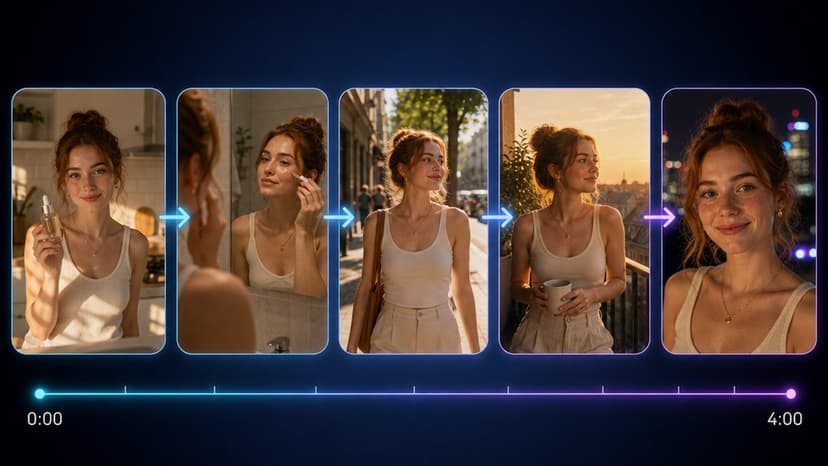
How to Make Clips with AI Tools
Step-by-step instructions for making short AI clips. Covers model choices, character consistency, credit costs, and a concrete 8-step workflow using current 2026 tools.
TL;DR
Use Seedance 2.0 or Veo 3.1 for 8-12 second clips with strong character lock. Supply a reference image, set 9:16 ratio, generate, then run lip sync if needed. Budget for the cost the app quotes before each clip and expect one extra pass for audio alignment.
The current options for AI clips
About a dozen production-ready models handle short-form video right now. The axis that separates them is motion coherence over 5-15 second durations paired with character lock.
Landscape of clip generators in 2026
Seedance 2.0, Kling 3.0, Veo 3.1, and Sora 2 sit at the top tier for motion quality. Each accepts text prompts or reference images and returns 1080p clips at 24 fps. Lower-tier tools often drop frame consistency after the sixth second.
Model specs at a glance
| Model | Max duration | Character lock | Native audio | Credit cost per 8s clip |
|---|---|---|---|---|
| Seedance 2.0 | 12 s | Strong | Yes | quoted in-app |
| Kling 3.0 | 10 s | Medium | No | quoted in-app |
| Veo 3.1 | 15 s | Strong | Yes | quoted in-app |
| Sora 2 | 8 s | Medium | No | quoted in-app |
Dimension that matters most
Character identity across frames decides whether a clip feels professional. Tools that maintain face and clothing details over 200 frames win for series work. Text to Video supports reference images that lock the subject from the first frame.
Head-to-head on character consistency
Seedance 2.0 keeps a single face across 300 frames when a 512x512 reference is supplied. Kling 3.0 drifts after 180 frames unless motion brush is used. Veo 3.1 adds automatic mouth alignment when paired with Lip Sync Video. Sora 2 requires an extra pass through Video to Video to restore identity.
Pick per use case
Short comedy needs fast iteration and built-in captions. Shorts Generator outputs 9:16 clips with auto-captions in one step, at a cost quoted before you generate.
Music videos need synced audio. Run the prompt through Music Generation first, then feed the track into Voice Cloning for the lead vocal.
Product demos need clean object motion. Start with Image to Video at 720p, then upscale via the image tools panel.
Step-by-step workflow
- Open the dashboard and select Text to Video.
- Enter a 12-word prompt that names the subject and action.
- Upload a 512x512 reference photo of the character.
- Set duration to 8 seconds and aspect ratio to 9:16.
- Choose Seedance 2.0 from the model dropdown.
- Generate and review the first 4 frames for face drift.
- If drift appears, regenerate with a stronger reference weight.
- Export the clip and add captions in the auto-captions panel.
Credit budgeting example
The app quotes the cost of an 8-second Seedance 2.0 clip before it runs, so ten clips a day give you a predictable daily total. Check that total against your remaining balance before committing to a larger bundle.
Limitations to plan around
None of the current models sustain perfect lip sync past 12 seconds without a separate Lip Sync Video pass. Audio generated inside the video model still needs manual volume matching when imported into editing software.
Pick Shorts Generator if you need 9:16 clips under 10 seconds with captions. Pick Text to Video if you need custom aspect ratios and longer motion control.
Frequently Asked Questions
how do I make short clips with AI▾
Enter a text prompt on the text-to-video page, pick a model, and generate a clip in seconds. Add lip sync afterward for talking-head segments.
which AI model is best for making clips in 2026▾
Sora 2 and Veo 3.1 Fast deliver strong motion and timing. Seedance 2.0 works well when you need multiple reference images or audio tracks.
can I add voice to my AI clips▾
Yes. Use the lip sync tool to match recorded or generated audio to the video. Gemini 3.1 Flash TTS supports many languages and voices.
how long does it take to make a clip▾
Most users finish a polished 15-second clip in 5 to 10 minutes including generation, lip sync, and captions.
what aspect ratio works for social clips▾
Use 9:16 for vertical platforms and 16:9 for YouTube or desktop. The tools let you choose the ratio before generation.