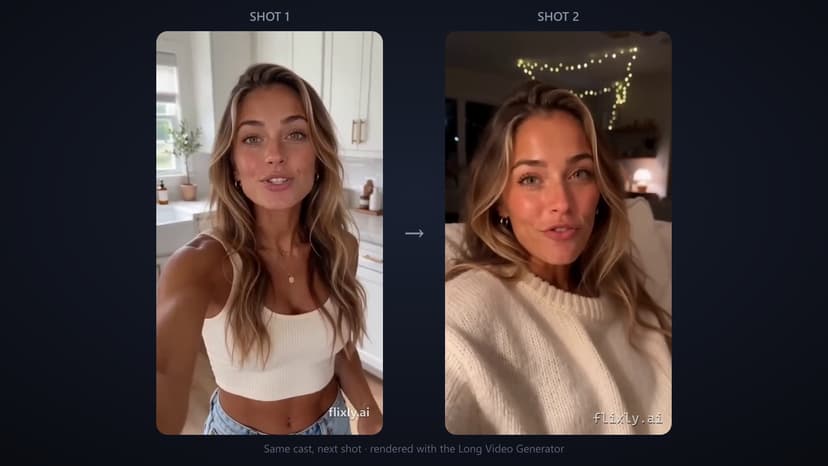
How to Make Long Videos Using AI (More Than 30 Seconds)
Every AI video generator hits the same wall: clips stop at 10, 15, maybe 30 seconds. Here's how to break past it, a full tutorial on making long videos using AI with Seedance 2.5, by chaining shots that continue from each other's final frame, up to 4 continuous minutes with the same characters throughout.
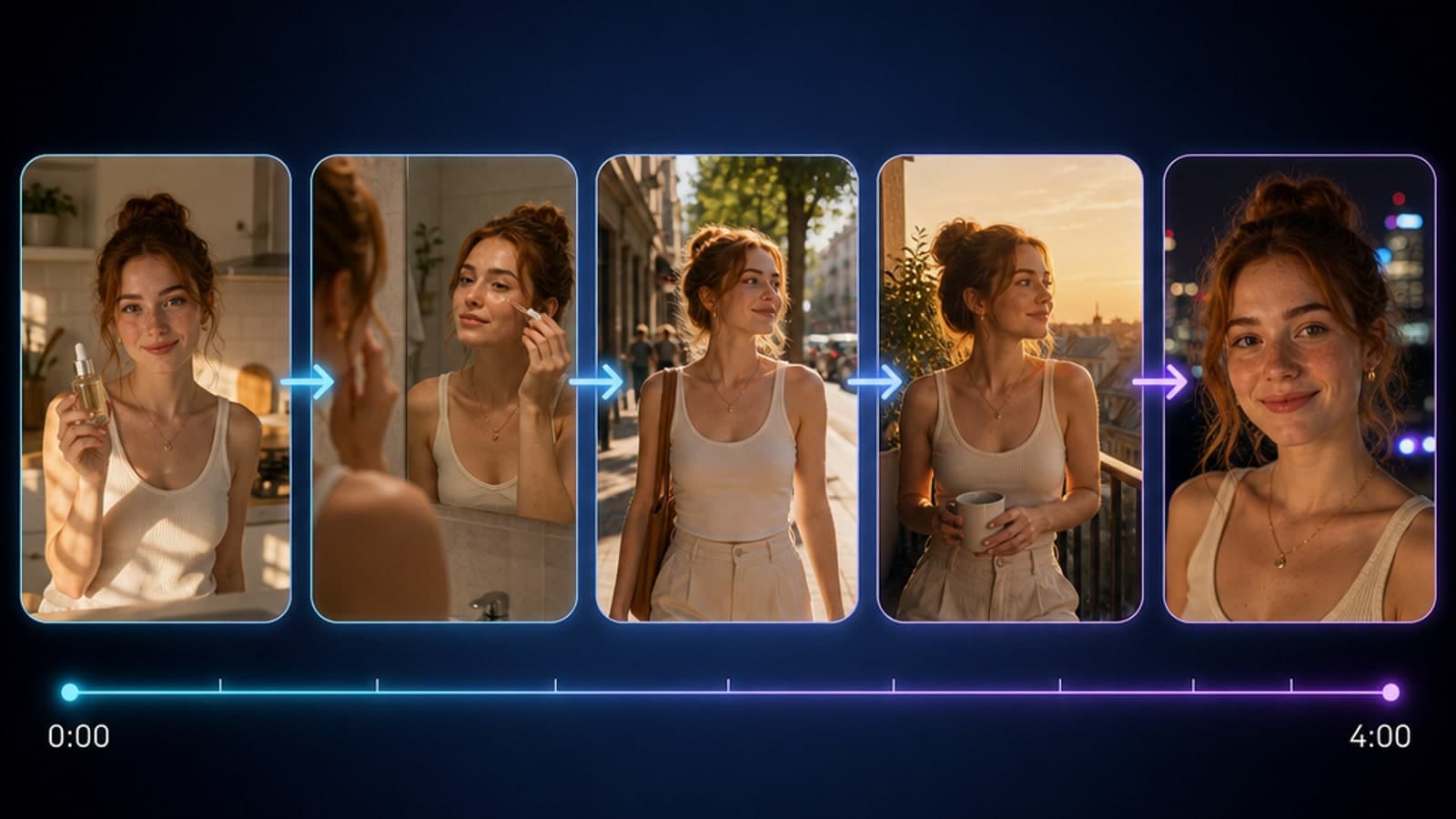
TL;DR
You can't make a long AI video in one render, every model, including Seedance 2.5, caps a single clip at around 30 seconds. The way to make long videos using AI is chaining: render shot 1 with your characters attached as references, then render each next shot with the previous clip attached as a reference so it continues from its exact final frame. Flixly's [Long Video Generator](https://www.flixly.ai/dashboard/long-video-generator) automates the whole chain: a free AI script planner, up to 8 chained shots of 30 seconds each (4 minutes total), consistent characters throughout, live credit pricing before every render, and a built-in editor that trims, watermarks and exports the final cut.
Every AI video tool hits the same wall. You write a great prompt, the render comes back beautiful, and it's 10 seconds long. Some models stretch to 15. Seedance 2.5 goes up to 30 seconds in a single clip, which is best-in-class, and still not a video. It's a shot.
So how do people make long videos using AI, the 2-minute product explainers, the multi-scene stories, the UGC ads with an actual arc? Not with one render. They chain renders. This tutorial shows you exactly how, using Flixly's Long Video Generator, which automates the chain end-to-end on Seedance 2.5, up to 4 continuous minutes in one project.
Why AI video generators stop at 30 seconds
Video diffusion models generate every frame of a clip in one pass, and the compute cost grows brutally with length. That's why the ceiling across the industry sits between 5 and 30 seconds per generation, and why "make it longer" isn't a setting you can just turn up.
The naive workaround (render five separate clips and glue them together) fails for a reason everyone discovers on their first try: each render starts from zero. New face, new lighting, new room. Your "video" plays like a slideshow of strangers.
Making a long AI video that actually holds together needs two things:
- Continuity: each new shot must pick up where the last one ended: same motion, same lighting, same world.
- Identity: your characters must have the same face in shot 7 as in shot 1.
Chaining solves both.
The chain: how long AI videos actually work
Seedance 2.5 accepts references, images and videos you attach to a generation, which the prompt can address by index ("the woman from [Image1]", "continuing directly from [Video1]"). The chain uses them like this:
- Shot 1 renders with your characters attached as image references. That fixes the faces.
- Shot 2 attaches shot 1's finished clip as a video reference, and its prompt continues from that clip's final frame. Wardrobe, lighting and motion carry over from the actual footage, not from a text description of it.
- Shot 3 continues from shot 2. And so on, up to 8 shots of up to 30 seconds each.
Identity comes from your characters, which ride along on every shot. Continuity comes from the chain. The result plays as one continuous video, the thing a folder of independent clips can never become.
You could run this chain by hand in any Seedance interface: download each clip, re-upload it as a reference, rewrite each prompt to continue the previous one. It works, and it's miserable. The Long Video Generator does all of it automatically, which brings us to the tutorial.
Every screenshot and video below comes from one real mini-project we made while writing this guide: a watch ad set in New York, two chained shots, one character. We kept it to 8 seconds on purpose, so you can watch the chain do its thing in one glance. The exact same workflow scales to 8 shots of 30 seconds each: a 4-minute continuous video.
Step 1: Open the Long Video Generator and start a project
Head to flixly.ai/dashboard/long-video-generator (it's under Creator Studio in the dashboard). One project = one video. Give it a title.
Step 2: Describe your concept and let the AI write the script (free)
Type your idea in a sentence or two: for our demo it was simply "an ad of a woman doing the publicity of a watch in New York". Don't put the duration in the prompt: set the number of shots and the full video duration with their own controls right below the concept box.
If you have a picture of a place, a product, a palette, or any look you want the video to copy, add it under Style & world references. The planner looks at these images and writes the script around what's actually in them. We uploaded a photo of the watch itself:

Then click Write cast & shots (free). The planner is a free AI call (it costs no credits) and writes the entire script: your characters plus one director-style prompt per shot, already phrased in Seedance's reference vocabulary, each one written to continue from the previous shot. Edit any prompt, reorder shots, or write the whole script by hand if you prefer.
Advice: think in shots of 10–20 seconds when you set your duration. Very short shots (4–5s) make the chain feel choppy; a few longer shots read as deliberate cinematography.
Step 3: Create your characters
The planner has already proposed a prompt for each character in your cast: hit generate on each one, tweak the prompts first, or write your own from scratch. Have photos of your own characters? Upload them instead. Generated and uploaded characters mix freely, up to 4 of them, and they're attached to every shot as [Image1], [Image2]…, which is what keeps faces stable across the whole video.
For our demo the planner proposed one character, "Elena", and GPT-Image 2.0 generated her from the proposed prompt:

Advice: for uploads, use a clean, well-lit, front-facing image. The model can restyle wardrobe and setting per shot, but it inherits face quality from your reference.
Step 4: Pick resolution, aspect ratio and durations, and check the price
Choose 480p or 720p, the aspect ratio for your platform (9:16 for TikTok/Reels/Shorts, 16:9 for YouTube), and each shot's duration (4–30 seconds, up to 4 minutes total). You can also toggle audio generation, Seedance 2.5 renders synchronized sound in the same pass.

The exact credit cost is quoted by the server and shown before you render, per shot and as a total for the whole chain. Two honest notes on cost:
- 480p costs less than half of 720p on Seedance 2.5. Draft at 480p, and re-render your final pick at 720p, or run the finished cut through the Video Upscaler.
- Chained shots cost more than shot 1, because the previous clip's seconds are billed alongside the output (at a reduced 0.6× rate). The UI shows this instead of hiding it.
There's also a Dry run that walks the whole pipeline without spending anything. Use it to sanity-check a big project before committing credits.
Step 5: Generate the chain
Hit Generate. Shots render in order, each waiting for the previous one so it can chain from its final frame. Failed renders refund automatically, and you can re-render any single shot without touching the rest. The chain picks the replacement up from there.
Here's our demo mid-project, both shots rendered. Notice the prompts: shot 1 places "Elena from [Image1]" and the watch "[Image2]" in Times Square, and shot 2 opens with "Continuing directly from [Video1]", that's the chain at work:

And here are the two rendered shots themselves. Watch the end of shot 1 and the start of shot 2: same street, same light, same Elena, because shot 2 was rendered from shot 1's final frame, not from a fresh prompt:
Shot 1: the opening, rendered from the character and product references.
Shot 2: chained, it continues directly from shot 1's final frame.
Step 6: Cut the final video
Finished shots drop into a built-in final-cut editor: include or exclude clips, reorder, trim each one, and preview the cut. Add a watermark (your handle, domain or logo, nine positions, adjustable size and opacity), then export the finished video as one file.

The exported result, one continuous video from two chained renders:
The final cut of our demo. Two shots, one continuous ad. Scale the same chain to 8 shots of 30 seconds and you have a 4-minute video.
Step 7: Captions, upscale, publish
From the saved cut you can jump straight into Auto Captions for styled subtitles (captioned videos consistently outperform silent ones on social) or the Video Upscaler for a resolution bump. Your video is in History and in the Long Video Generator library whenever you need it again.
Five tips for better long AI videos
- Write the arc before the prompts. A long video needs a beginning, middle and end. Give the planner a concept with an arc and it will script one; give it a vibe and you'll get 4 minutes of vibe.
- Front-load your strongest visual. Chained shots inherit their world from shot 1, its lighting and setting echo through the whole video, so make shot 1 the one you'd thumbnail.
- Change the camera, not the world. Between consecutive shots, ask for a new angle, distance or movement rather than a new location. Save location jumps for deliberate scene breaks.
- Iterate one shot at a time. If shot 4 is weak, re-render shot 4. That's the point of the chain being made of parts.
- Match the aspect ratio to the destination from the start. Cropping 16:9 to 9:16 after the fact throws away most of your frame, and most of your credits.
What about other tools?
You can chain manually with any model that accepts video references, and stitch anything in a traditional editor. The difference is a workflow built around the chain: the script planner writes continuation-aware prompts, references attach themselves, prices are quoted upfront, and the editor lives on the same page. If you just need a single short clip, the regular Video Generator is the faster path, and if you want a recurring series with the same cast across many videos, that's what Series Generator V2 grew into.
Frequently Asked Questions
How do you make AI videos longer than 30 seconds?▾
No AI model renders a long video in one pass, clips cap out around 30 seconds. The technique is chaining: render the first shot with your characters attached as references, then render each following shot with the previous clip attached as a video reference so it continues from its final frame. Flixly's Long Video Generator automates this chain up to 4 continuous minutes on Seedance 2.5.
How long can an AI video be with Seedance 2.5?▾
A single Seedance 2.5 generation goes up to 30 seconds. With chaining in the Long Video Generator, up to 8 shots of up to 30 seconds each link into one continuous video, a 4-minute maximum per project.
How do I keep the same character in every scene of a long AI video?▾
Attach the same characters as image references on every shot. Seedance 2.5 addresses them by index ([Image1], [Image2]…), so the face stays fixed while wardrobe, setting and story change freely. The Long Video Generator does this automatically for up to 4 characters.
How much does it cost to make a long AI video?▾
The exact credit price is shown before every render, per shot and as a total. 480p costs less than half of 720p, and chained shots cost slightly more than the first because the reference clip's seconds are billed at a reduced rate. Failed renders refund automatically, and a free Dry run previews the whole pipeline without spending credits.
Is the script written by AI too?▾
Yes, optionally. Describe your concept in a sentence, set the shot count and duration, and click "Write cast & shots": a free AI planner writes your characters and one continuation-aware prompt per shot. You can edit every prompt, or write the script entirely by hand.
Can I edit the long video inside Flixly?▾
Yes. The built-in final-cut editor trims, reorders and previews shots, stamps a text or logo watermark, and exports the finished video as one file. From there you can add styled subtitles with Auto Captions or bump the resolution with the Video Upscaler.