How to make a film online free
Step-by-step guide to producing short films using only browser-based AI generators. Covers model selection, credit budgeting, and assembly workflow for 2026 tools.
TL;DR
Sign up for Flixly, buy starter credits, then chain text-to-video, image-to-video, and lip-sync generations using models like Veo 3.1 and Kling 3.0. Export assembled MP4 files directly from the dashboard after eight concrete steps.
What making a film online free actually means
Making a film online free means using a web browser and AI generators to produce video sequences, soundtracks, and assembled shorts without buying editing software or camera gear. It does not include live-action shoots with physical locations or paid actors.
How the process runs under the hood
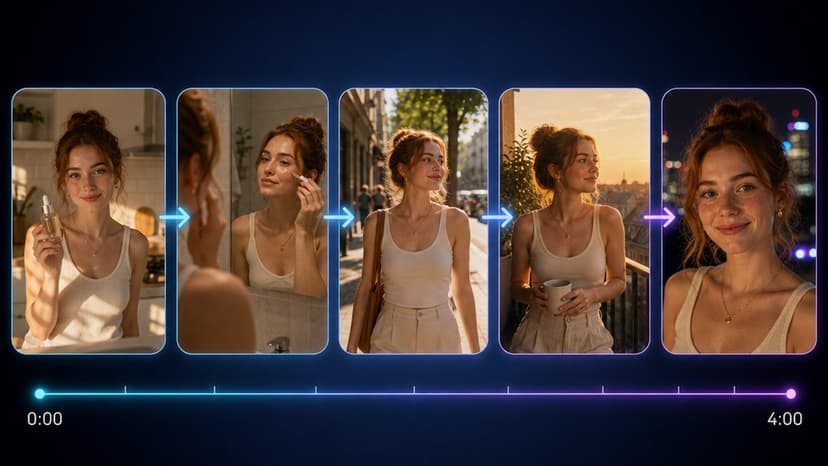
Flixly routes prompts through 50-plus models hosted on its servers. A text prompt first hits a video model such as Veo 3.1 or Kling 3.0 that returns a 4-second clip at 720p. The same clip can then feed into Seedance 2.0 for motion refinement or Wan 2.7 for style transfer. Audio tracks come from separate calls to Gemini 3.1 Flash TTS or Music Generation.
Each generation consumes credits purchased after sign-up. The app quotes each generation's credit cost before you run it, and initial free credits stretch furthest on lighter models. Heavier frontier models like Sora 2 burn credits faster.
Concrete inputs and outputs
Input examples include a 120-character prompt, a 512-by-512 reference image, or a 3-second audio stem. Output files arrive as MP4 video at 24 fps or WAV audio at 48 kHz. A typical 8-second scene from Image to Video weighs 12 MB.
Resolution options run from 480p for quick tests to 1080p for final exports. Duration caps sit at 12 seconds per generation on most video endpoints, so longer films require stitching multiple clips.
Where the workflow appears in practice
Creators start with a script broken into 10 scenes. They generate establishing shots via Text to Video, then add character motion with Reference to Video. Dialogue lines pass through Text to Speech and land on Lip Sync Video. Final assembly happens inside the dashboard timeline before export.
Short-form projects such as 60-second festival entries often finish in under two hours once the first clips exist. Longer narrative pieces take multiple evenings because each revision consumes new credits.
Step-by-step instructions
- Create an account at the registration page and claim the starter credit bundle.
- Open the text-to-video tool and enter a scene description under 200 characters.
- Select Veo 3.1 or Kling 3.0 from the model dropdown and set duration to 8 seconds.
- Generate the clip, then download the MP4 to your local drive.
- Move to the image-to-video page and upload the previous clip as reference for the next scene.
- Generate matching audio with the music tool using a 90 BPM tempo prompt.
- Route both files into the lip-sync tool and align the generated voice track.
- Return to the dashboard, import every clip, trim overlaps, and export the finished film.
Credit usage and model comparison
| Model | Typical clip length | Credits per generation | Best use case |
|---|---|---|---|
| Veo 3.1 | 8 seconds | quoted in-app | Realistic human motion |
| Kling 3.0 | 10 seconds | quoted in-app | Cinematic camera moves |
| Seedance 2.0 | 6 seconds | quoted in-app | Dance and action sequences |
| Wan 2.7 | 12 seconds | quoted in-app | Anime and stylized looks |
Where to start
Begin with the dedicated text-to-video endpoint and run a single test scene to learn credit burn rates before scaling to a full project.
Frequently Asked Questions
Which 2026 models handle realistic dialogue scenes best on Flixly?▾
Veo 3.1 combined with Gemini 3.1 Flash TTS gives the strongest lip sync results on clips under 12 seconds.
How many credits does a finished 90-second short film consume?▾
Most 90-second projects need several passes, and the app quotes the credit cost of each one before it runs.
Can exported films leave the platform without watermarks?▾
Final exports from the dashboard timeline contain no watermarks once all assets are generated inside the account.
What frame control options exist beyond basic prompting?▾
First-to-last-frame and video-to-video tools let users set specific start and end frames for tighter motion direction.