Ideogram 4.5 Region Edits: Change Part of an Image, Keep the Rest
Ideogram 4.5 can now edit just part of an image on Flixly. Draw a box over a sign, a label or an object, describe the change, and get your image back at its original size with every pixel outside the box untouched. Three real tests, including a 4K photo, show exactly what changed and what did not.
TL;DR
Region edits for Ideogram 4.5 are live in the Flixly Image Generator. Choose A region under Edit area, drag a box over the part to change, and describe the edit. Only the box is redrawn, at the image's own resolution; every pixel outside it is kept. In our tests, 0 pixels outside the box changed, and a 5504 × 3072 photo came back at full size. The price follows quality only.
You can now edit just part of an image with Ideogram 4.5 on Flixly. Draw a box over the part you want to change, describe the change, and Ideogram edits only that region, at the image's original resolution. Every pixel outside the box comes back exactly as it was. We tested it on three images, including a 5504 × 3072 photo. In every test, not a single pixel outside the box changed, and the 4K photo came back at its full size. Try a region edit in the Image Generator.
What is a region edit in Ideogram 4.5?
A region edit is an image edit confined to a rectangle you choose. You pick the part of the picture that may change, such as a sign, a label or a frame on the wall. Ideogram 4.5 then rewrites that part to match your instruction and leaves the rest of the file untouched.
It solves two problems of ordinary AI image editing:
- Nothing else drifts. When a model edits a whole picture, it redraws the whole picture, so faces, text and textures you did not mention can shift. A region edit restores every pixel outside the box from your original file.
- Big images stay big. An edit of the whole image is processed at up to about 4.2 megapixels, so a larger photo comes back smaller. A region edit only processes the box, so the result keeps the original's width and height.
On Flixly, a region edit always runs at Ideogram 4.5's high edit precision, and it costs the same as any other Ideogram 4.5 edit at the same quality.
Region edit or whole-image edit?
| Region edit | Whole-image edit | |
|---|---|---|
| What changes | Only the pixels inside your box | Anything in the picture can change |
| Outside the box | Kept exactly, pixel for pixel | Redrawn; High precision keeps it close to the original |
| Output size | The same as your image, at any size | Up to about 4.2 megapixels (a 4K photo comes back smaller) |
| Edit precision | Always High | Regular or High, your choice |
| Best for | Signs, labels, logos, one object, one face, one patch of background | Restyling, recolouring or changing the whole scene |
| Price | Set by Quality (Low, Medium or High) | Set by Quality (Low, Medium or High) |
Real examples
We made every example below on Flixly with the prompt and box shown, and each is the first result we got. We compared each edited file with its original pixel by pixel, and the counts below come from that comparison. The images are resized for the web; the orange box marks the region we drew.
A 4K storefront sign: full size kept, nothing else touched
The source is a 5504 × 3072 photo (16.9 megapixels) we made with Nano Banana 2.1 at 4K. We drew a 2320 × 660 box around the shop sign and asked:
Change the sign to read NIGHT OWL CAFE in the same cream serif letters on the dark green board.
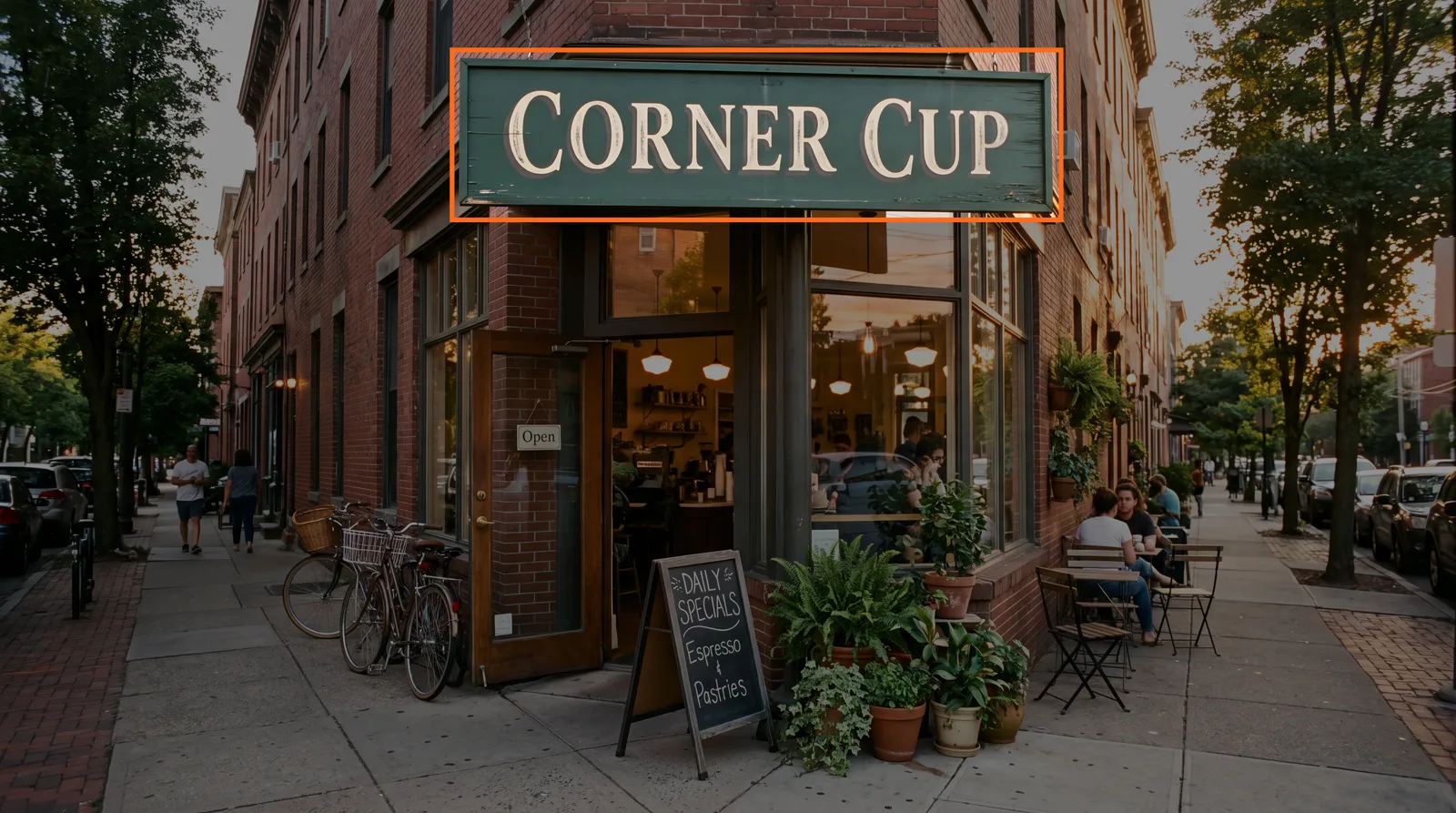
The edit took 88 seconds and came back at 5504 × 3072, the same size as the original. The sign now reads NIGHT OWL CAFE in matching lettering, with the board's wood grain and weathering kept. Of the 15,377,088 pixels outside the box, 0 changed.
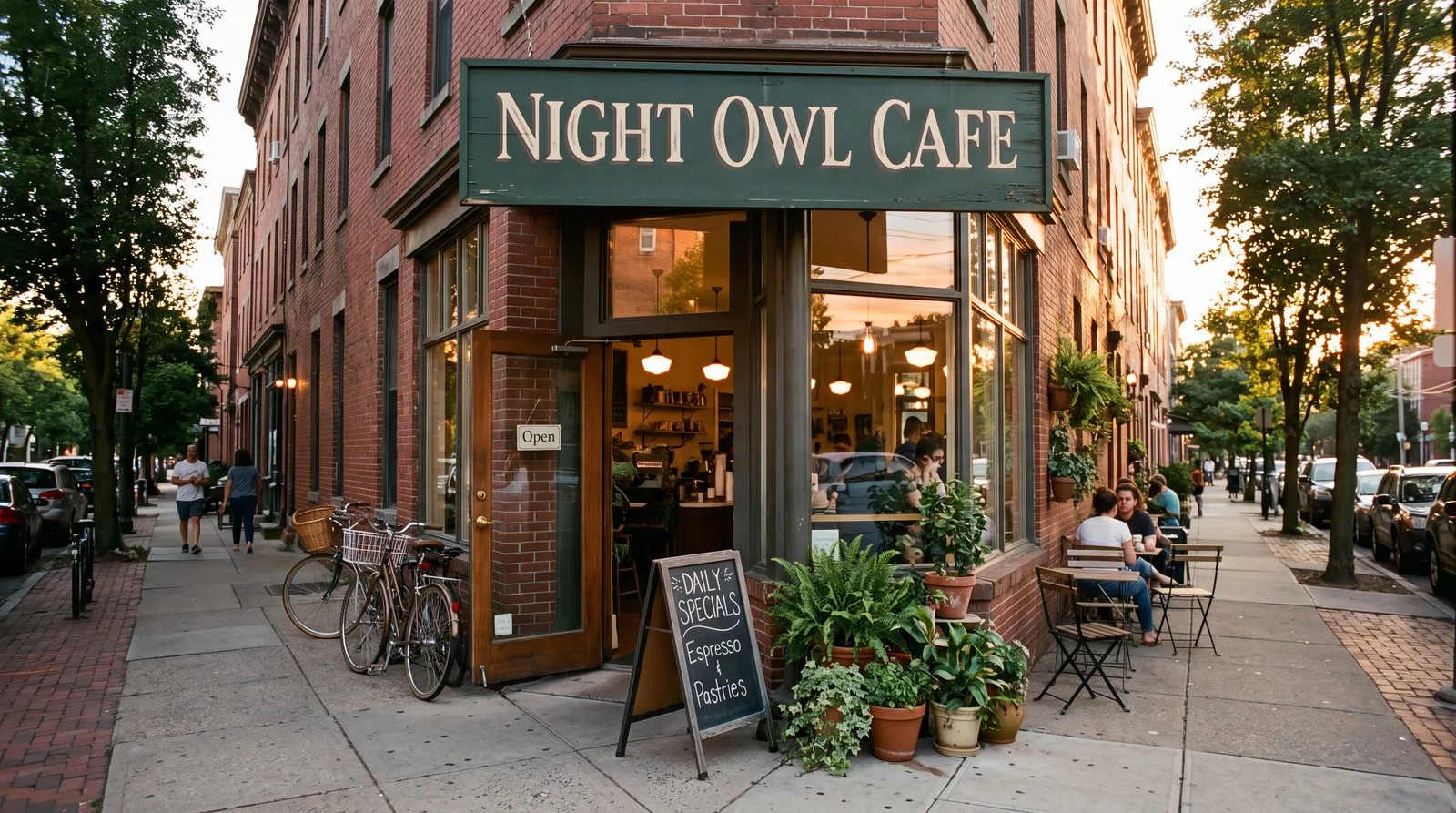
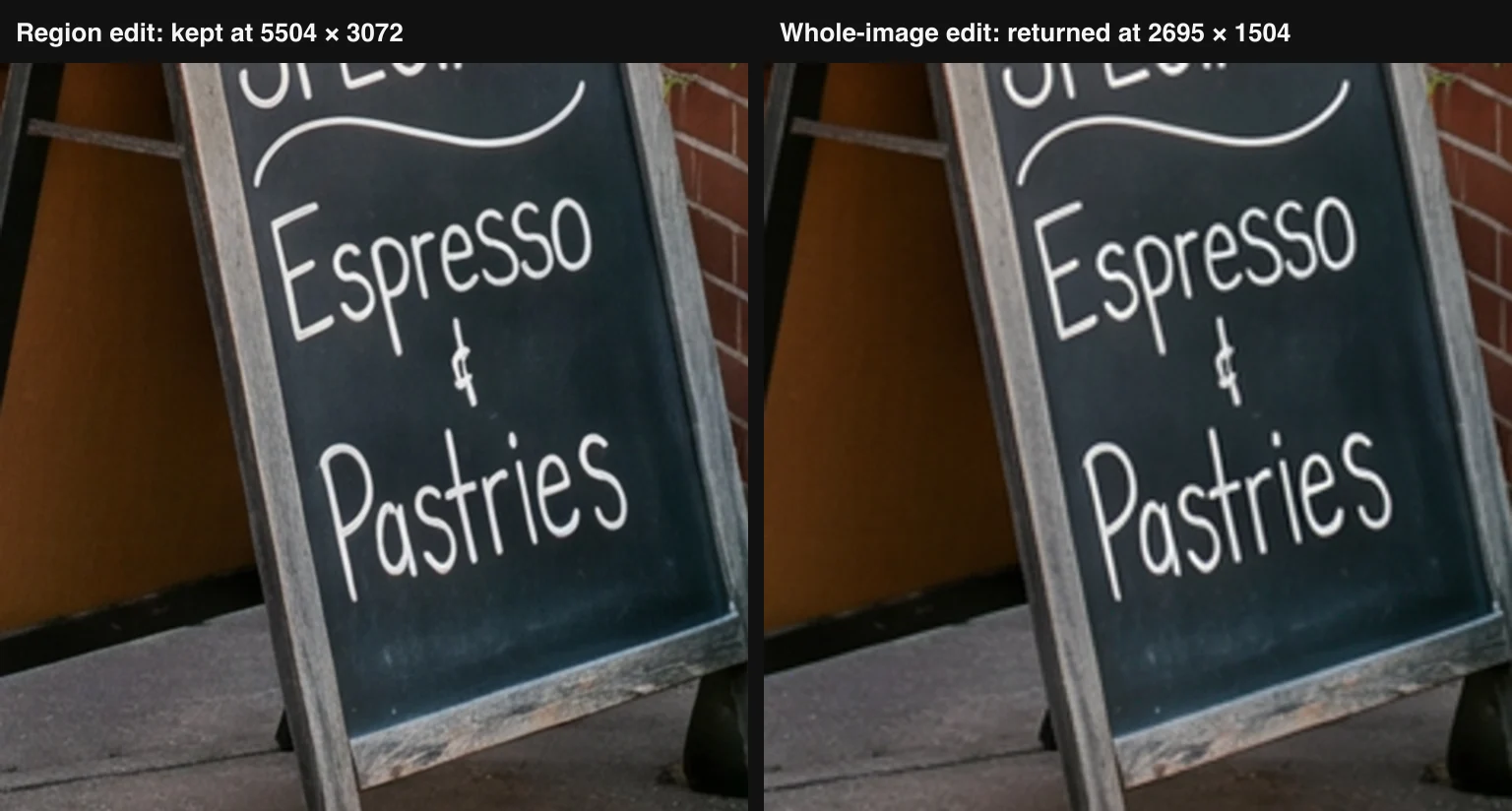
For comparison, we sent the same photo and prompt as a whole-image edit at High precision. The text came out just as well, and High precision kept the rest of the picture close to the original. But the result was 2695 × 1504 pixels, 4.05 megapixels instead of 16.9. Here is the same patch of the chalkboard from both results, outside the edit box, shown at the same size:
Fixing the text on a product label
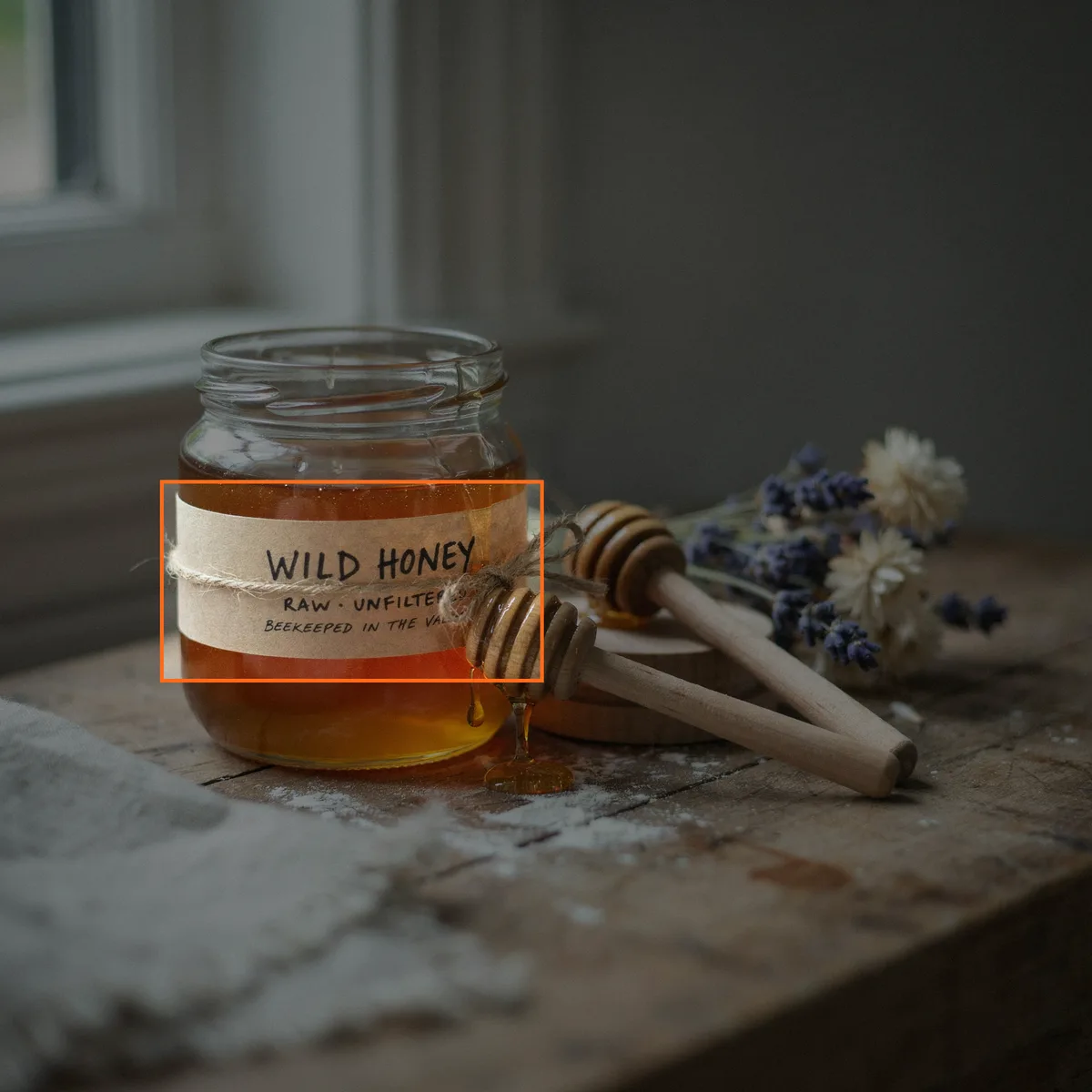
AI image models still slip on small text. Ideogram 4.5 made this honey jar at 2048 × 2048, with a third label line that reads "BEEKEEPED IN THE VA…". A region edit is the cleanest way to fix a label without risking the rest of a product shot. We drew a 720 × 380 box over the label and asked:
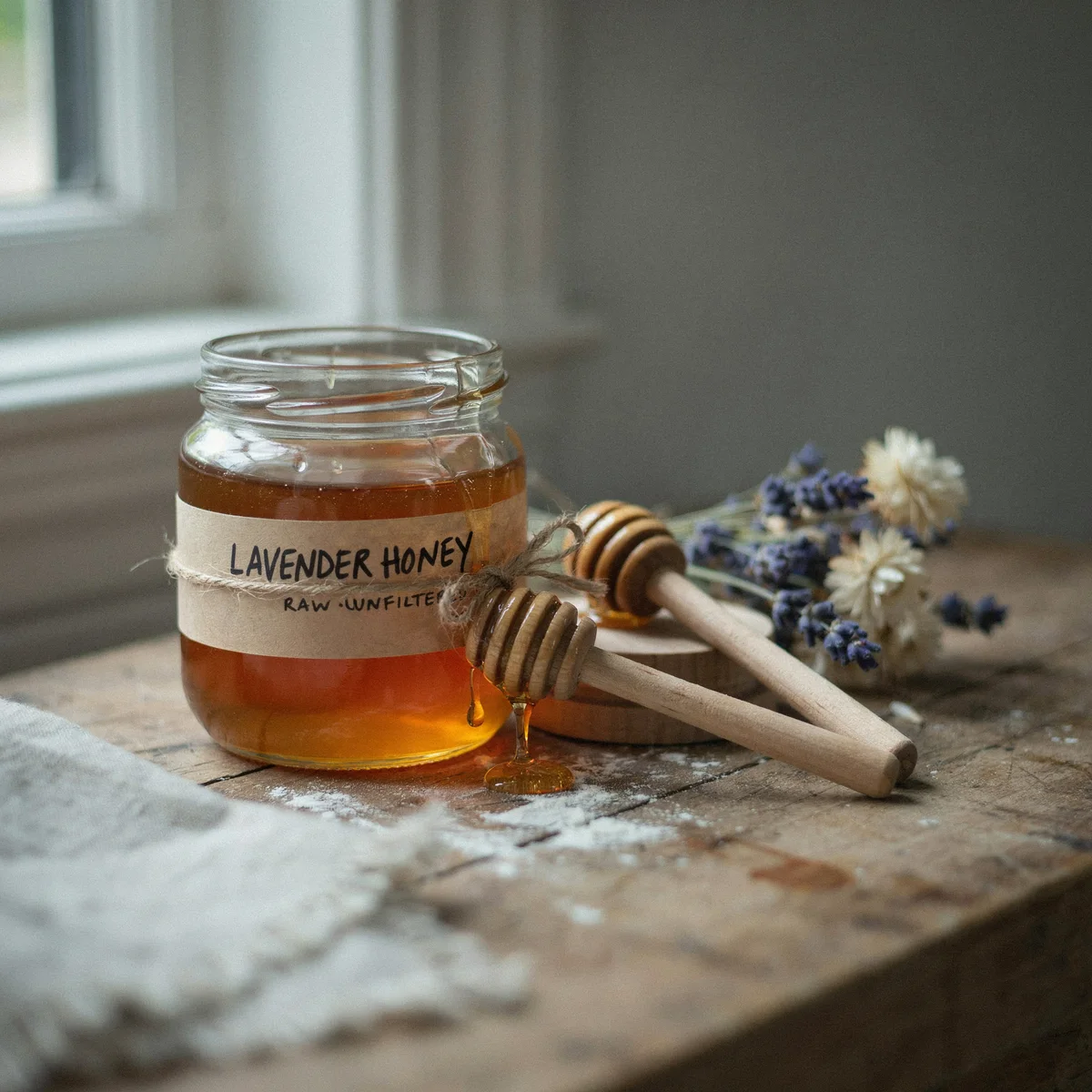
Change the label to read LAVENDER HONEY on the first line and RAW · UNFILTERED on the second line, in the same hand-lettered black ink on kraft paper.
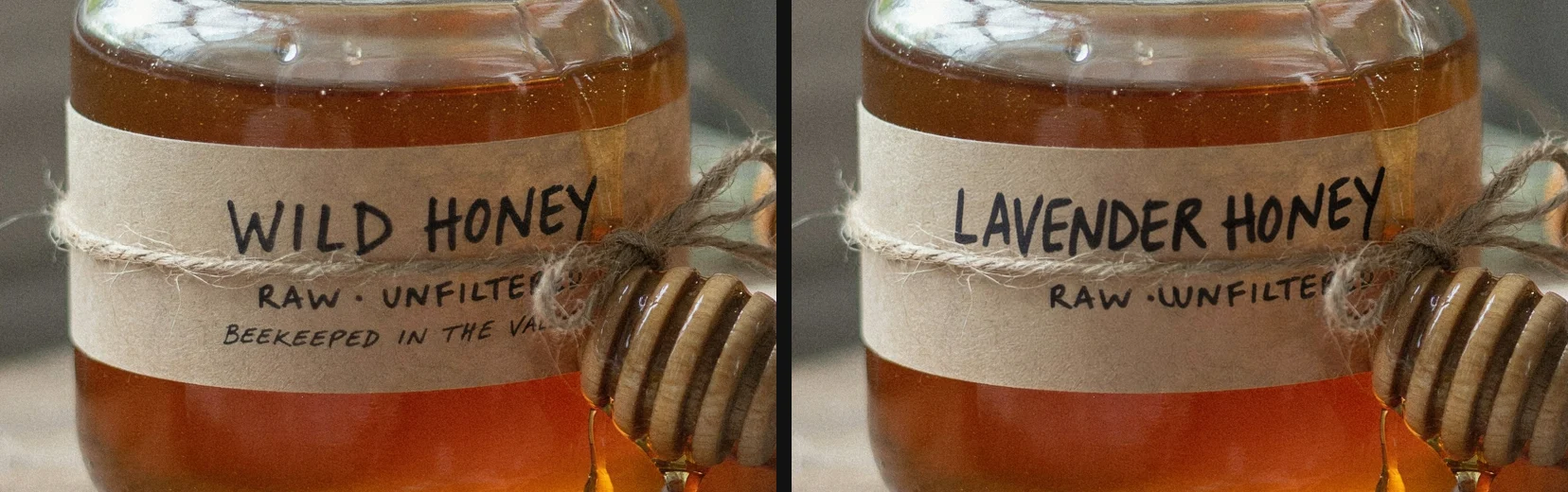
It took 56 seconds. The label now has the two lines we asked for, in the same hand-lettered style, and the garbled third line is gone. The twine, the honey dipper crossing the label and the reflections on the glass are all still there. Of the 3,920,704 pixels outside the box, 0 changed.
At full size, before and after:
Swapping the picture on a wall
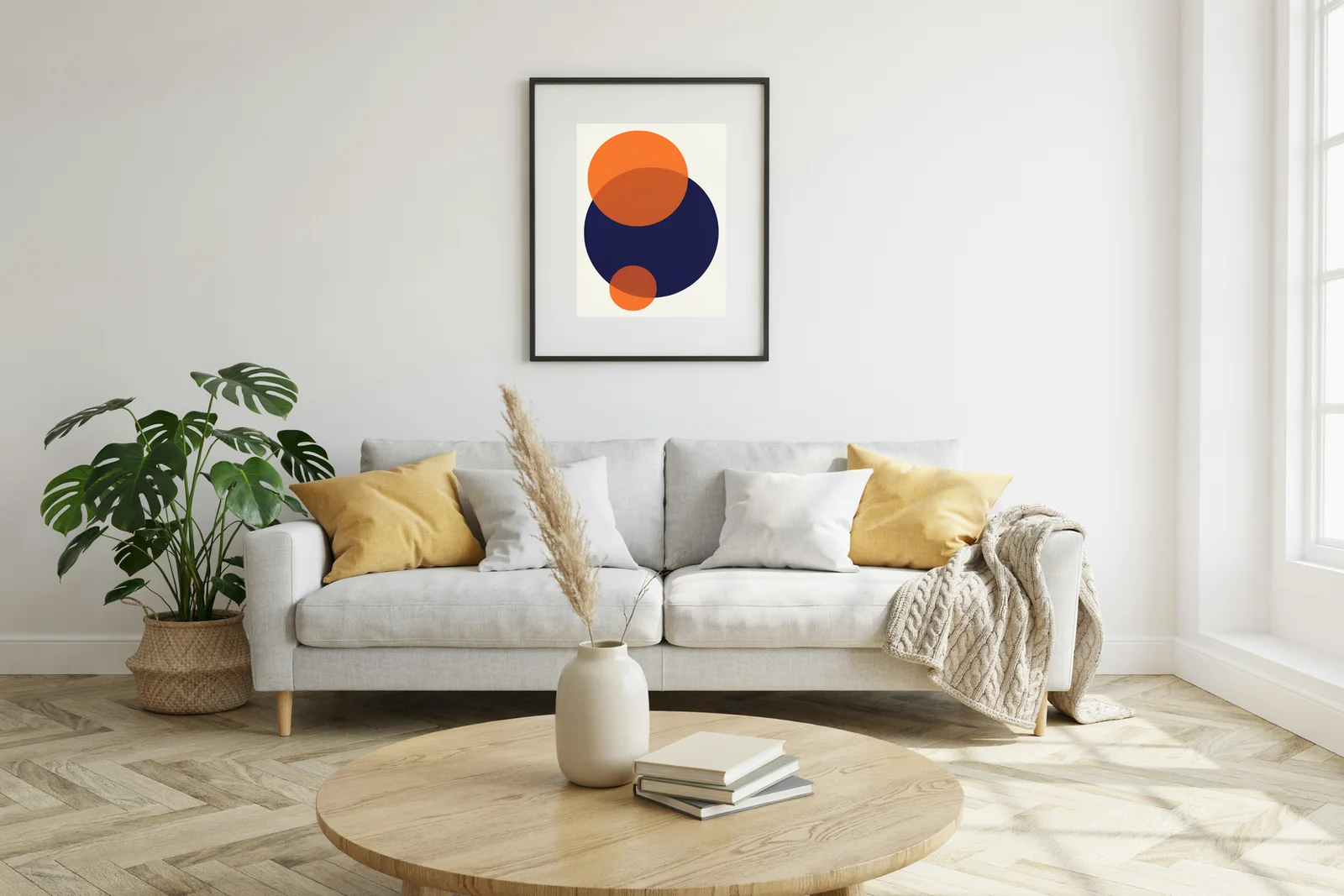
Region edits are not only for text. This 2496 × 1664 living room, also made with Ideogram 4.5, has a black and white mountain photo above the sofa. We drew a 540 × 620 box around the frame and asked:
Replace the black and white mountain photograph inside the frame with an abstract print of overlapping orange and navy circles. Keep the black frame and the white mat.
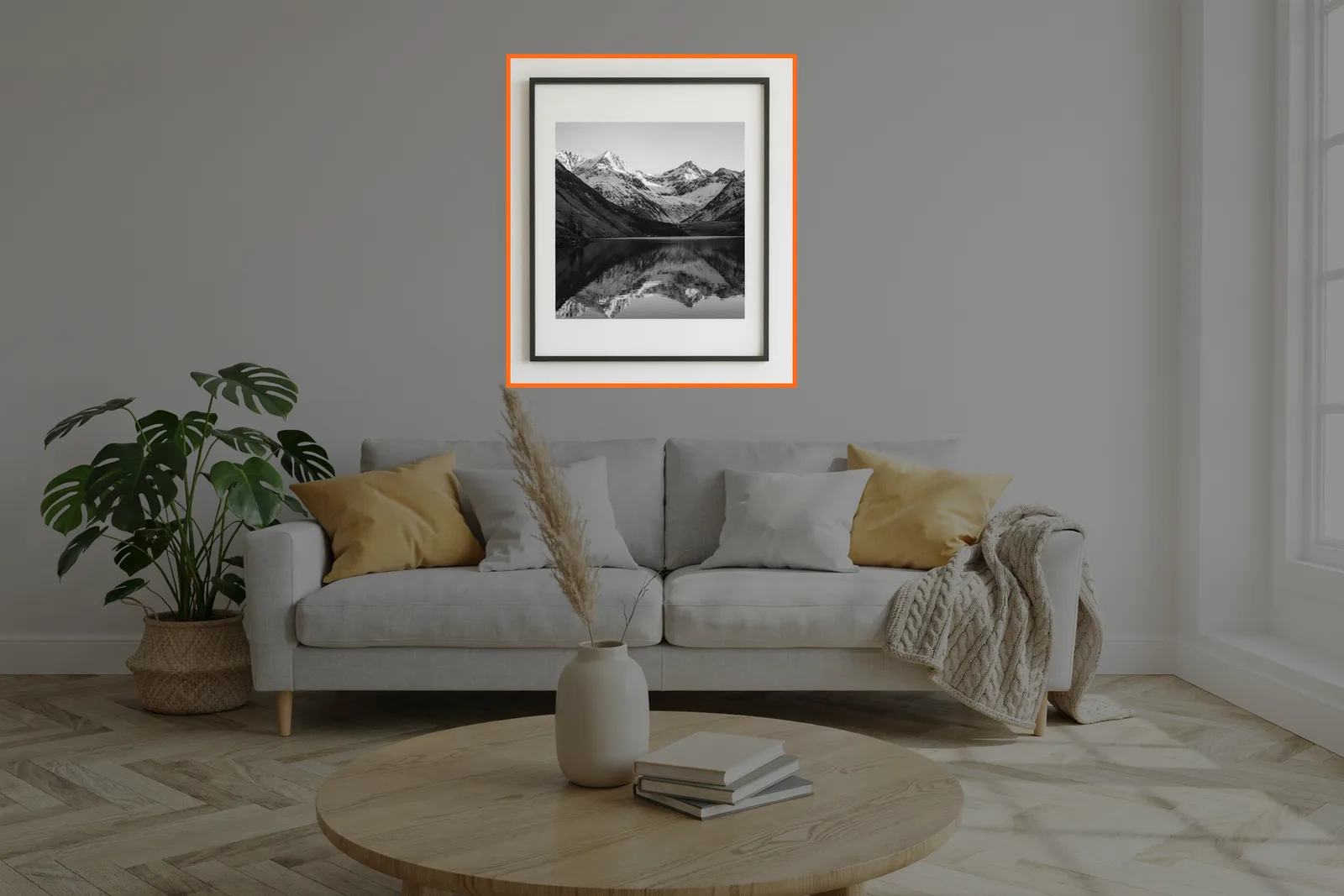
It took 48 seconds. The frame and mat stayed, the print inside is new, and the sofa, plant, cushions and light are exactly as they were. Of the 3,818,544 pixels outside the box, 0 changed.
How to edit part of an image on Flixly
- Open the Image Generator in Image mode with Ideogram 4.5.
- Add the image you want to change: a JPEG, PNG or WebP of up to 10 MB. You can also add up to four reference images.
- Under Edit area, choose A region. A box appears over the middle of your image.
- Drag across the part you want to change to draw your own box. The box snaps to the sizes Ideogram accepts, and its size in pixels shows in the corner.
- Pick a Quality (Low, Medium or High). Quality sets the price; the box does not.
- Describe the change, then press Transform image. Download the result: it has the same size as your image.
To edit the whole picture instead, choose Whole image. You can then pick Regular or High precision; High keeps what you did not ask to change closer to the original.
Rules for the edit box
- At least 256 pixels on each side. Smaller boxes are enlarged around the spot you drew, so a single click places a 256 × 256 box.
- At most about 4.2 megapixels (4,194,304 pixels, for example 2048 × 2048). Larger boxes shrink around their centre.
- No thinner than 1:6. A long, thin strip is made taller (or wider), or shortened if the image has no room, until it fits.
- Inside the image. A box drawn past the edge slides back inside.
- Your image needs at least 256 pixels on each side for A region to be available.
The image itself can be any size Flixly accepts. Only the box is limited, and the box is all the model has to process.
Tips for better region edits
- Leave a margin. Draw the box a little larger than the object, so that the model can blend the edges into what surrounds them.
- Name what to keep. "Keep the black frame and the white mat" or "in the same cream serif letters" tells the model what inside the box should survive.
- Put quotes or capitals around new text. Ideogram is strongest at lettering when the exact words are spelled out, as in NIGHT OWL CAFE.
- One region per edit. To change two things far apart, run two region edits one after the other. Each one keeps everything outside its own box.
- Use Whole image for global changes. A new style, new lighting or a new season affects every pixel, so a box would only limit it.
Related tools
- Ideogram 4.5 also generates images from a prompt, with sharp text in 15 aspect ratios.
- Ideogram Vector turns a prompt or an image into an editable SVG.
- Krea 3 edits with up to eight reference images.
- AI inpainting explained covers the general technique behind editing part of a picture.
Frequently Asked Questions
What is an Ideogram 4.5 region edit?▾
A region edit is an Ideogram 4.5 image edit limited to a rectangle you draw. Only the pixels inside the box are redrawn to match your instruction; everything outside it is restored from your original file. On Flixly, choose A region under Edit area in the Image Generator's Image mode, drag the box, describe the change and press Transform image.
Does a region edit change anything outside the box?▾
No. Pixels outside the box come back exactly as they were. We checked three region edits pixel by pixel against their originals, a 5504 × 3072 photo, a 2048 × 2048 product shot and a 2496 × 1664 interior, and 0 pixels outside the box changed in any of them.
Does a region edit keep my image's resolution?▾
Yes. The result has the same width and height as your image, because only the box is processed. An edit of the whole image is processed at up to about 4.2 megapixels, so a large photo comes back smaller: in our test, the whole-image edit of a 5504 × 3072 photo returned 2695 × 1504, while the region edit returned 5504 × 3072.
How big can the edit box be?▾
Each side must be at least 256 pixels, the box can cover at most 4,194,304 pixels (for example 2048 × 2048), and it cannot be thinner than 1:6. You do not need to measure: the box snaps to these limits as you draw it, and a single click places a 256 × 256 box.
Do I need to paint a mask?▾
No. On Flixly you draw a rectangle on the image, and the instruction describes what should change inside it. Leave a small margin around the object so the edges blend into their surroundings.
Does a region edit cost more than a normal edit?▾
No. An Ideogram 4.5 edit is priced by its Quality setting, Low, Medium or High, whether or not you draw a box. The Image Generator shows the credit estimate beside the Transform image button before you start.
Can I use reference images with a region edit?▾
Yes. Ideogram 4.5 takes your image plus up to four reference images in Image mode, with or without a region. The references guide what is drawn inside the box; nothing outside it changes.