
Seedream 5.5 Layer Decomposition: Split Any Image Into Editable Layers
Seedream 5.5 now powers Flixly's Layer Decomposition tool. Upload a picture and get back a clean background plate plus each person, object and block of text as its own transparent PNG. You choose the most layers it may return and pay only for the ones you get. See three real splits with their settings and times.
TL;DR
Seedream 5.5 Layer Decomposition, built on ByteDance's newest Seedream model, is live in Flixly's Layer Decomposition tool. It splits an uploaded image into a base image with the elements removed and one transparent PNG per element, in stacking order. You pick 1K, 1.5K or 2K and a ceiling of 8, 16 or 30 layers, and pay only for the layers returned. A busy street scene gave 12 images in 65 seconds.
New: need just the subject on a transparent background? Bria RMBG-3.0 now powers Remove Background, with real examples of a group shot, flyaway hair, a lattice chair and a product label.
Seedream 5.5 can now split any image into editable, transparent layers on Flixly: upload a picture and get back a clean background plate plus each person, object and block of text as its own PNG. Open Layer Decomposition, pick Seedream 5.5, choose a resolution and the most layers you want, and Flixly shows the price before you start. You pay only for the layers it returns. Every example below is a real first result made on Flixly, with its settings and time.
What is Seedream 5.5 Layer Decomposition?
Seedream 5.5 is the newest image model from ByteDance's Seed team, announced on November 9, 2026 in Introducing Seedream 5.5. One of its headline upgrades is native transparency: ByteDance says the model generates images with a real alpha channel and renders edges and transparent regions carefully, so elements can go straight into a design as standalone assets without separate background removal.
Seedream 5.5 Layer Decomposition puts that to work on pictures you already have. It reads an image, finds its main elements and returns:
- A base image: the scene with the separated elements lifted out and the space behind them filled in.
- One transparent PNG per element: a person, a sign, a pot, a lamp, a block of text, each cut out on its own canvas.
The layers come back in stacking order, from the base at the bottom to the topmost element, so they reassemble into the original picture in a design tool.
How to split an image into layers on Flixly
- Open Layer Decomposition under Image Tools.
- Upload a PNG, JPG or WebP.
- Under Model, choose Seedream 5.5.
- Pick a Resolution (1K, 1.5K or 2K), a Base image format (PNG or JPEG; the layers are always PNG) and Most layers (up to 8, 16 or 30, counting the base image).
- Click Split into layers. Flixly holds the price for the most layers you chose and, when the job finishes, charges only for the layers that came back and refunds the rest.
- Click through the layers in the result panel, then download the base image or all of them.
Which settings should you choose?
| Setting | Options | What it changes |
|---|---|---|
| Resolution | 1K, 1.5K, 2K | Detail in the base image and in each layer. The base keeps your image's shape. |
| Base image format | PNG, JPEG | Only the base image. Layers are always transparent PNGs. |
| Most layers | Up to 8, 16 or 30 | A ceiling, not a target. Busy scenes use more layers; a simple portrait may need two or three. |
Start at up to 8 for portraits, products and posters. Raise it to 16 or 30 for crowded scenes, where 8 can run out before every element has its own layer.
Real examples
Every result below was made on Flixly with the Layer Decomposition tool and its built-in instruction ("Separate this image into its background, subject, and key visual elements as individual layers"), with the settings shown. Each is the first result we got, resized for the web and otherwise unedited. Layers are shown on a checkerboard so you can see where they are transparent. The two source pictures are Seedream 5.5 images from our Seedream 5.5 launch post.
A busy night-market stall, 12 images
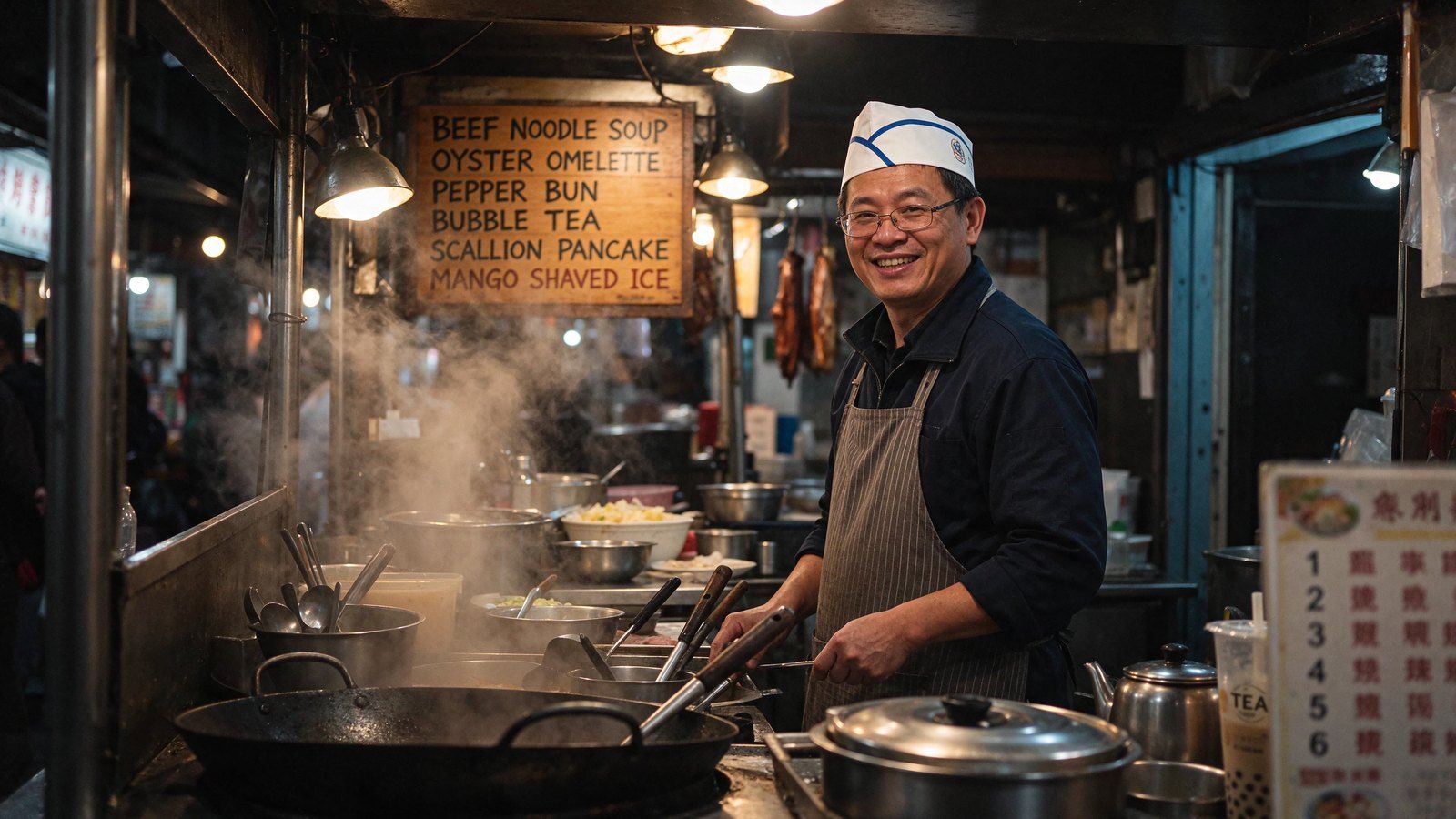
The source: a street-food stall with a vendor, a hand-painted menu board, a wok, pots, lamps and steam.
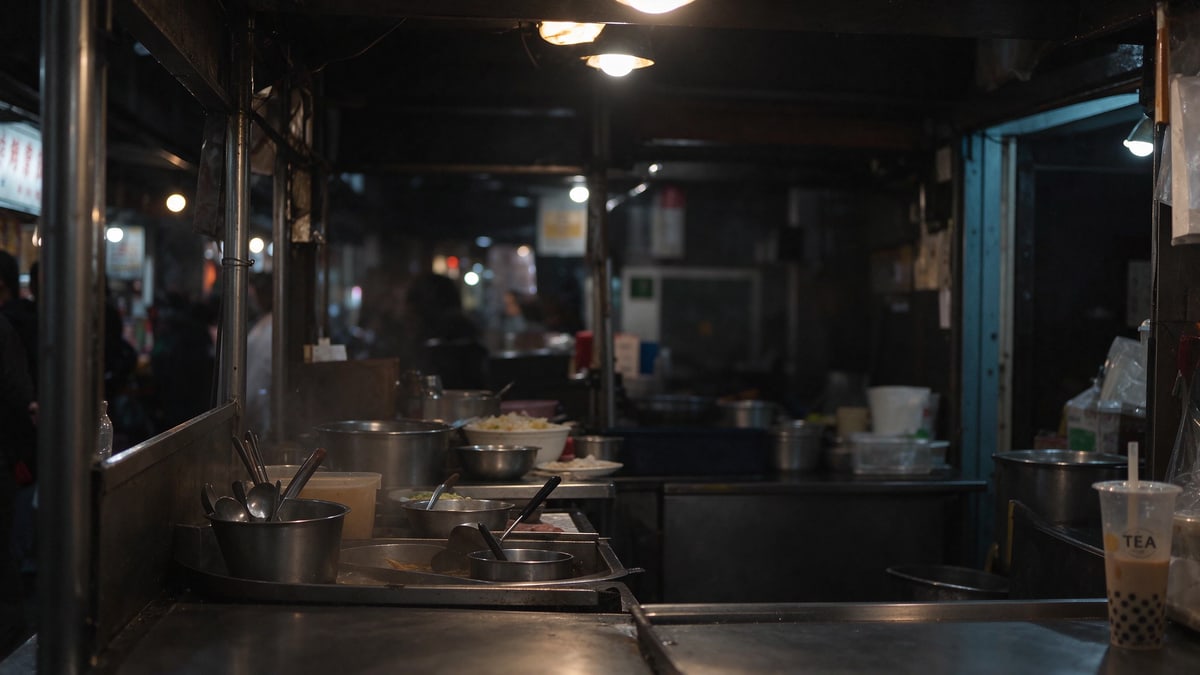
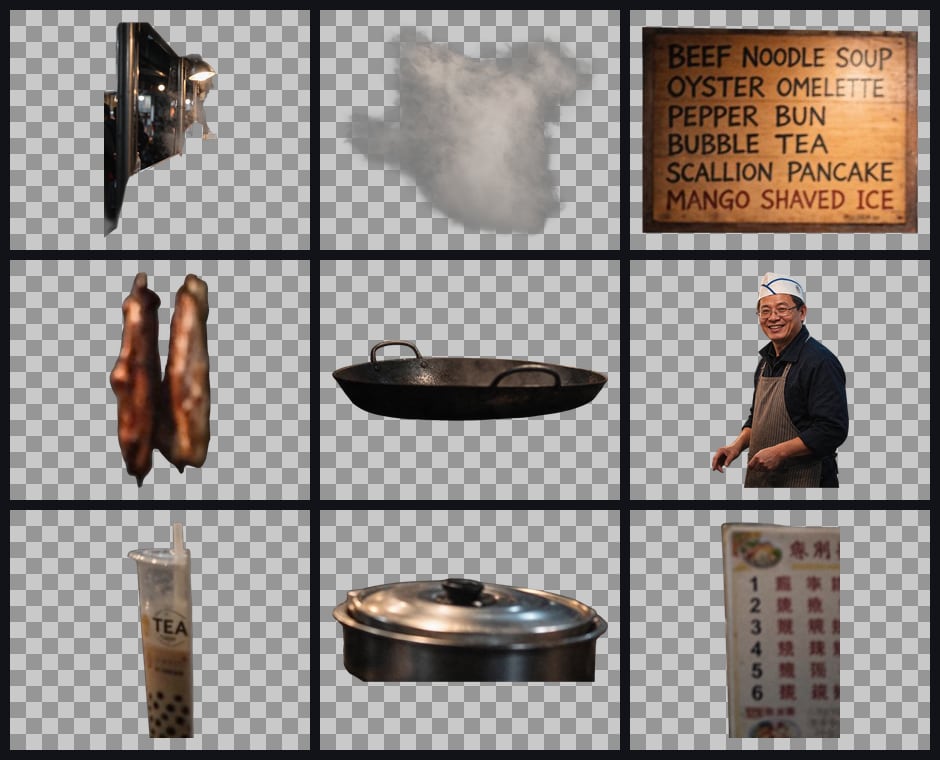
Seedream 5.5 at 1.5K with up to 16 layers returned 12 images in 65 seconds. First the base image: the empty stall, with the vendor, the menu board, the wok, the pots and the lamps gone and the counter and back wall filled in where they stood. One bubble tea cup survives in the corner of the plate even though it also came out as its own layer.
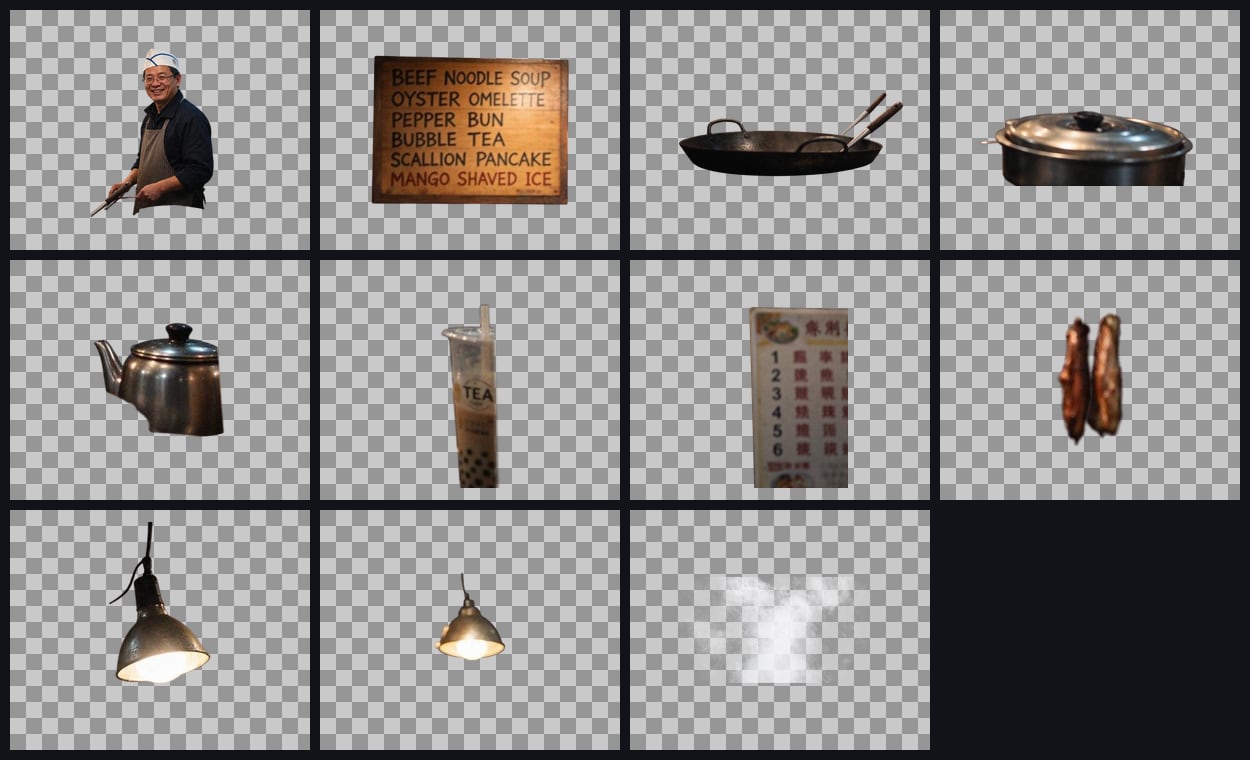
Then the 11 layers, in stacking order: the vendor, the menu board, the wok with its utensils, the stock pot, the kettle, the bubble tea cup, the price list, the hanging roast meat, two lamps and the steam. The menu board keeps all six lines of lettering, and the steam comes out as a soft, partly transparent layer rather than a solid shape.
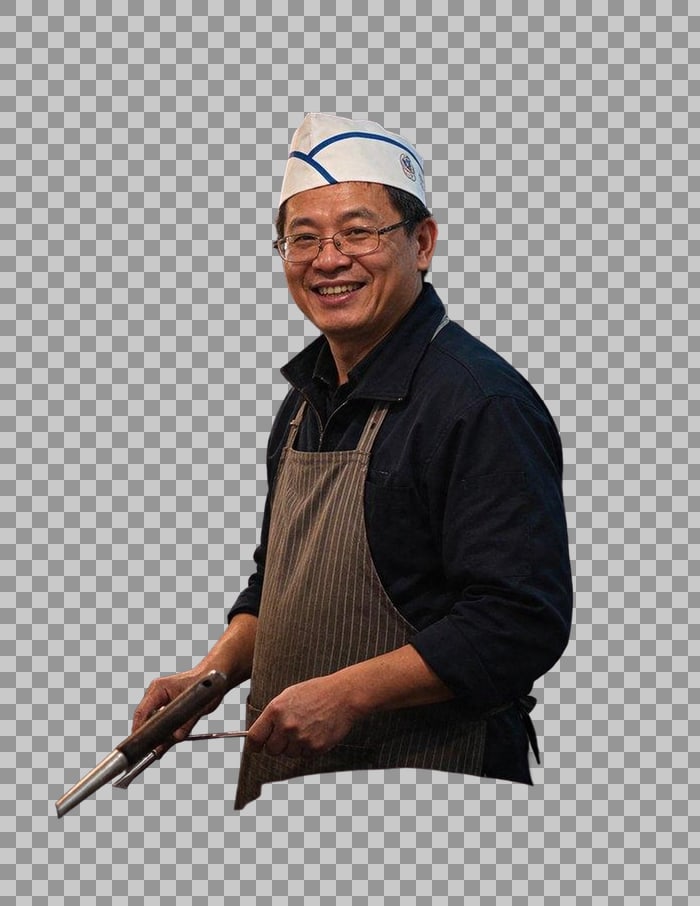
A closer look at the vendor layer: his hat, glasses, the tongs in his hand and the stripes of his apron are cut cleanly from the background.
A poster with text, 5 images
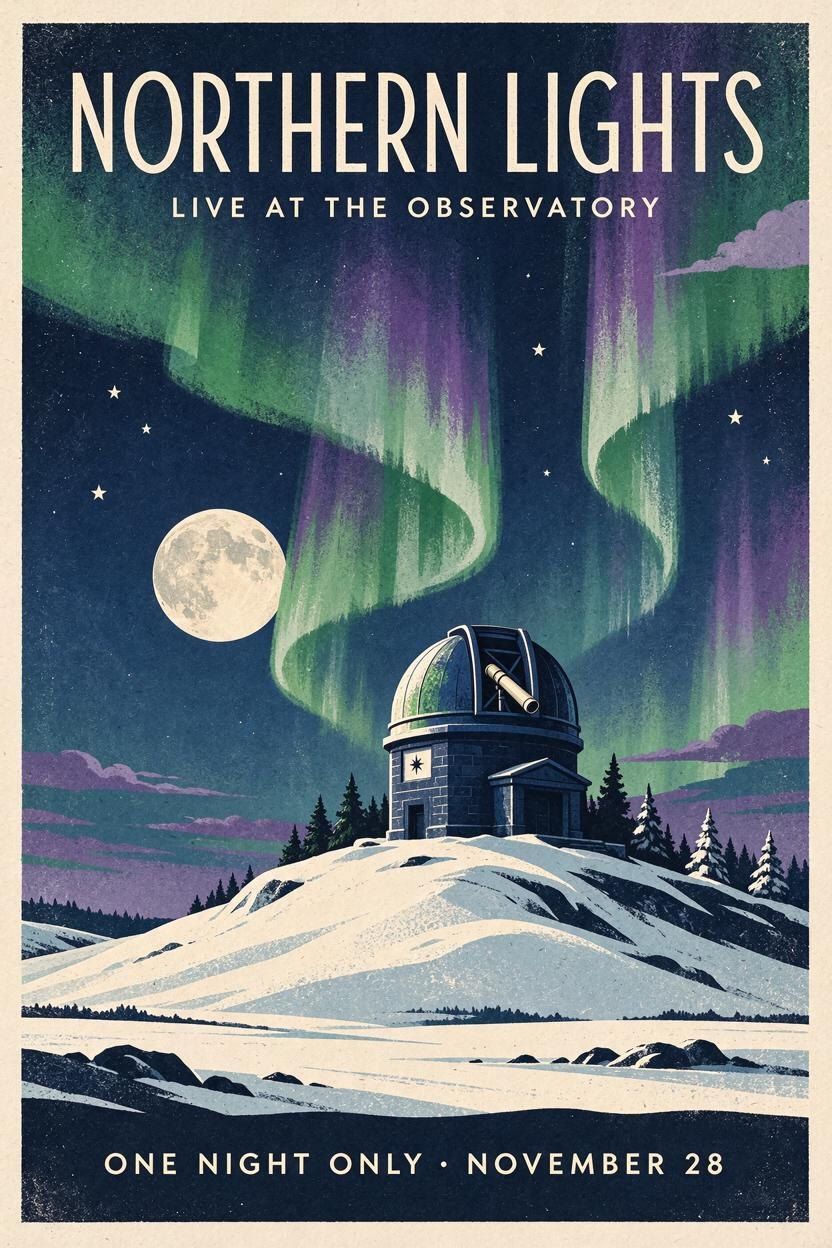
The source: an illustrated event poster with a title, a subtitle and a date line around an observatory under the northern lights.
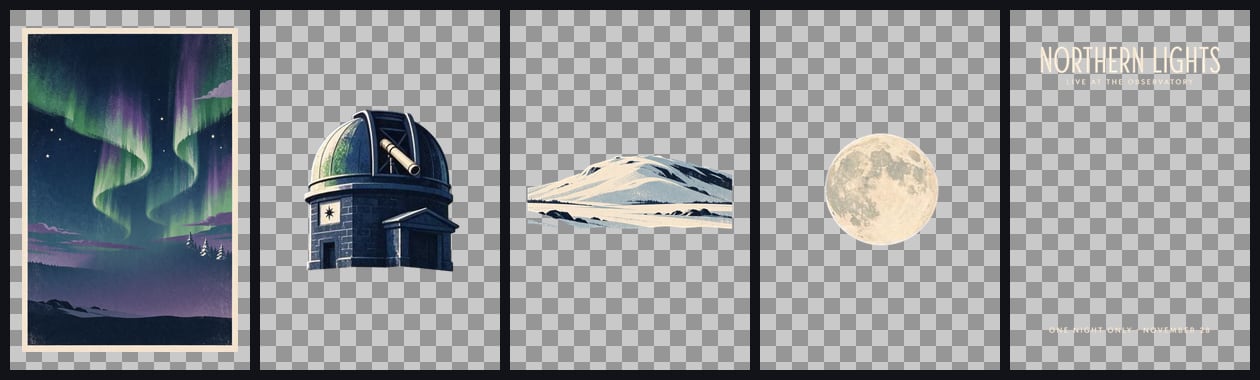
Seedream 5.5 at 2K with up to 8 layers returned 5 images in 42 seconds: the sky as the base, then the observatory, the snowy hill, the moon, and all of the poster's text on one transparent layer, still in its original lettering and position. That text layer is the useful part for a designer: swap the date or the title without repainting the illustration.
How does Seedream 5.5 compare with Seedream 5.0 Pro for layers?
The Layer Decomposition tool offers both engines. We ran the same night-market picture through Seedream 5.0 Pro at 1.5K. It returned 10 images in 122 seconds: a base and 9 layers.
| Seedream 5.5 | Seedream 5.0 Pro | |
|---|---|---|
| Same picture, 1.5K | 12 images in 65 seconds | 10 images in 122 seconds |
| Elements it separated | Vendor, menu, wok, stock pot, kettle, tea cup, price list, roast meat, two lamps, steam | Wall strip with lamp, steam, menu, roast meat, wok, vendor, tea cup, stock pot, price list |
| Most layers | You choose: up to 8, 16 or 30 | Decided by the model |
| Resolutions | 1K, 1.5K, 2K | 1K, 1.5K, 2K |
Both kept the menu lettering intact and cut the vendor cleanly. Seedream 5.5 split the kettle and the two lamps into their own layers, where 5.0 Pro grouped one lamp into a strip of the wall, and 5.5 finished in about half the time. Seedream 5.5 is also cheaper per layer on Flixly, and the tool shows each engine's price before you start.
What is layer decomposition useful for?
- Editing one element without touching the rest. Recolor a product, move a person or resize a sign on its own layer.
- Reusing parts of an image. Drop the cut-out vendor or the bubble tea cup into a new layout, a thumbnail or a sticker sheet.
- Changing text on a finished design. When text comes out on its own layer, as on the poster, you can replace it and keep the artwork.
- Animating a still. Separate layers can move independently for a parallax or motion-graphics shot.
For one-step jobs, Remove Background and Object Removal are faster. For everything in a picture at once, use Layer Decomposition.
Ready to take an image apart? Open Layer Decomposition, choose Seedream 5.5 and upload something with a few things going on in it.
Frequently Asked Questions
What does Seedream 5.5 Layer Decomposition do?▾
Seedream 5.5 Layer Decomposition takes one image and returns a base image plus a transparent PNG for each element it finds, such as a person, a sign, an object or a block of text. The base image is the scene with those elements removed and the space behind them filled in. It runs on ByteDance's Seedream 5.5 in Flixly's Layer Decomposition tool.
How many layers can Seedream 5.5 return?▾
On Flixly you choose the ceiling for Seedream 5.5: up to 8, 16 or 30 images, counting the base image. It is a ceiling, not a target. In Flixly's examples a busy night-market stall gave 12 images with a ceiling of 16, and a poster gave 5 with a ceiling of 8. You pay only for the layers returned.
Can Seedream 5.5 separate the text in an image?▾
Yes. When Seedream 5.5 split an illustrated poster on Flixly, it put the title, subtitle and date line on one transparent layer in their original lettering and position, apart from the artwork. That lets you change the words without repainting the picture. Small text inside an object, like a printed menu, usually stays with that object's layer.
What resolutions and formats does Seedream 5.5 Layer Decomposition support?▾
Seedream 5.5 Layer Decomposition on Flixly renders at 1K, 1.5K or 2K, and the base image keeps the shape of the picture you upload; a 16:9 photo at 1.5K came back at 2048 by 1152 pixels. The base image can be PNG or JPEG, and every separated layer is a transparent PNG.
How is Seedream 5.5 different from Seedream 5.0 Pro for layer decomposition?▾
On the same night-market picture at 1.5K, Seedream 5.5 returned 12 images in 65 seconds and Seedream 5.0 Pro returned 10 in 122 seconds. Seedream 5.5 split the kettle and both lamps into their own layers, lets you set the most layers it may return, and costs less per layer on Flixly. Both are available in the same tool.
Why does Seedream 5.5 make good transparent layers?▾
ByteDance built native transparency into Seedream 5.5: the model generates images with a real alpha channel and renders edges and partly transparent areas carefully, according to ByteDance's announcement of November 9, 2026. In Flixly's examples that shows in clean edges around the hat, glasses and tongs of a cut-out person and in steam that stays soft and see-through.