Need Help Creating with AI? Ask Flixly: 8 Questions, Real Results
Can't keep a character consistent, or does your video look AI-generated? Ask the Flixly team: it is free, we answer by email, guide you step by step and can even test it with you. Here are eight typical questions, our answers and what they made on Flixly.
TL;DR
Anyone can ask the Flixly team for help creating with AI, free and without an account, on flixly.ai/ai-help or at support@flixly.ai. We answer by email, usually within 24 hours, guide you step by step and can even test it with you on Flixly. This guide shows eight typical questions and what each answer made, from a character who stays the same in every scene and a video that looks real to a dubbed clip.
Stuck making something with AI? Ask the Flixly team. Tell us what you want to make on the Help creating with AI page, or email support@flixly.ai. We answer by email, usually within 24 hours, guide you step by step and can even test it with you on Flixly: how to keep a character the same in every scene, how to make a result look real instead of AI-generated, which model to use, how to word the prompt and how to fix a result that went wrong. Asking is free, and you don't need an account. Below are eight typical questions, the answer we give to each, and what that answer made on Flixly.
What is Flixly's help for AI creators?
Flixly puts image, video, voice, music and 3D models from makers such as Google, ByteDance, Kuaishou, MiniMax, Ideogram, HeyGen and VEED in one account. With that many models, the hard part is often the decision before you generate, not the generation itself: which model, which mode, which words.
That decision is what we help with. The Flixly team works with these models every day, so we can tell you which one fits your idea and your format, how to describe what you want, and what to change when a result is not right. The two questions we hear most are how to keep a character looking the same from scene to scene, and how to stop a result from looking AI-generated.
We don't stop at one reply. We read every message, look at your example if you send one, and answer by email. Then we guide you through the next steps, and if you want, we test it with you on Flixly: we try the model and settings we suggest, look at the result with you and adjust until you know what works.
How to ask the Flixly team for help
- Open Help creating with AI, choose what you need help with and write your question. You can also email support@flixly.ai.
- Say what you are making: what it is, where it will be shown, and its size and length, such as a 9:16 video of 10 seconds for Instagram.
- If you have already tried, add the model, the prompt and a link to the result, and say what is wrong with it.
- We reply by email, usually within 24 hours, with the model and settings to use, a prompt you can start from, and what to try if the first result is not right.
- We guide you from there, and we can test it with you on Flixly until the result is what you had in mind.
Eight questions we answer, with results
Each example below was made on Flixly in our own tests, and each section links the guide that has every setting.
1. "How do I keep my character's face and outfit the same in every scene?"
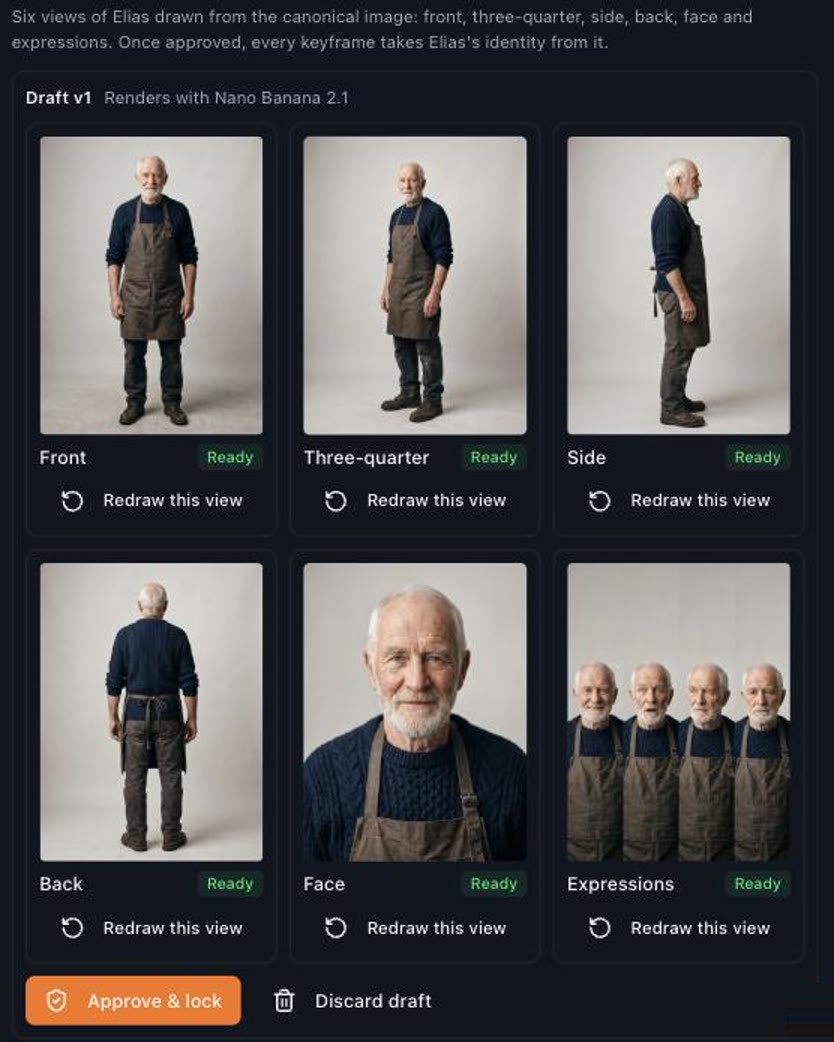
Our answer: Build the story in Story Creator. In live action, a character starts from one image you approve. Story Creator draws a six-view identity sheet from it (front, three-quarter, side, back, face and expressions), and every keyframe takes the character's identity from that sheet. Describe what makes the character recognisable, such as the hair, one signature item of clothing and the silhouette. If one scene drifts, redraw only that keyframe before you animate it.
What it made: For our own live-action episode, The Last Tide Café, we wrote two fictional characters: a retired lighthouse keeper, Elias, and his granddaughter Maya. This is the identity sheet Story Creator drew for Elias:
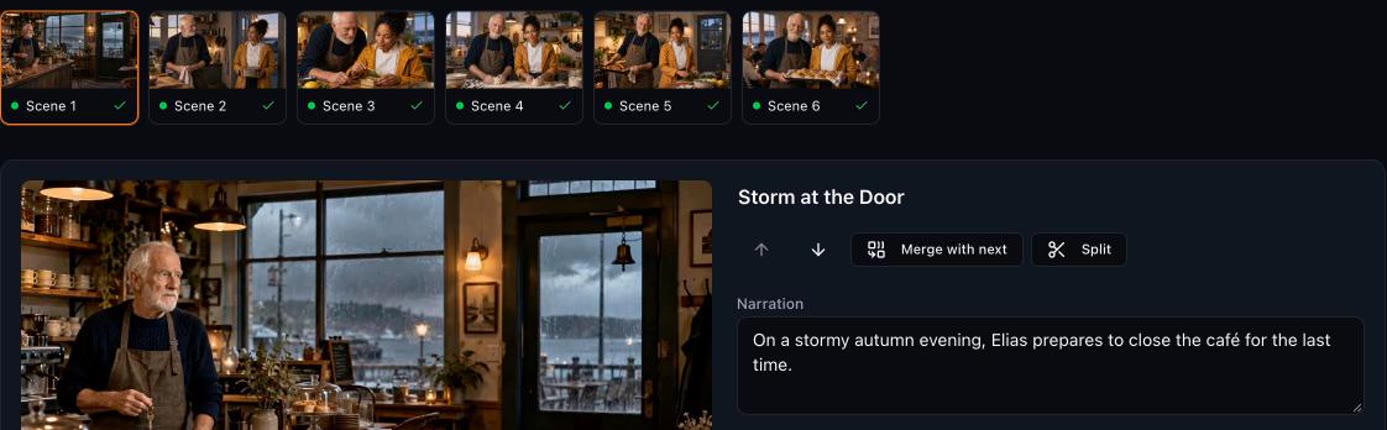
Every keyframe of the storyboard then drew Elias and Maya from their sheets:
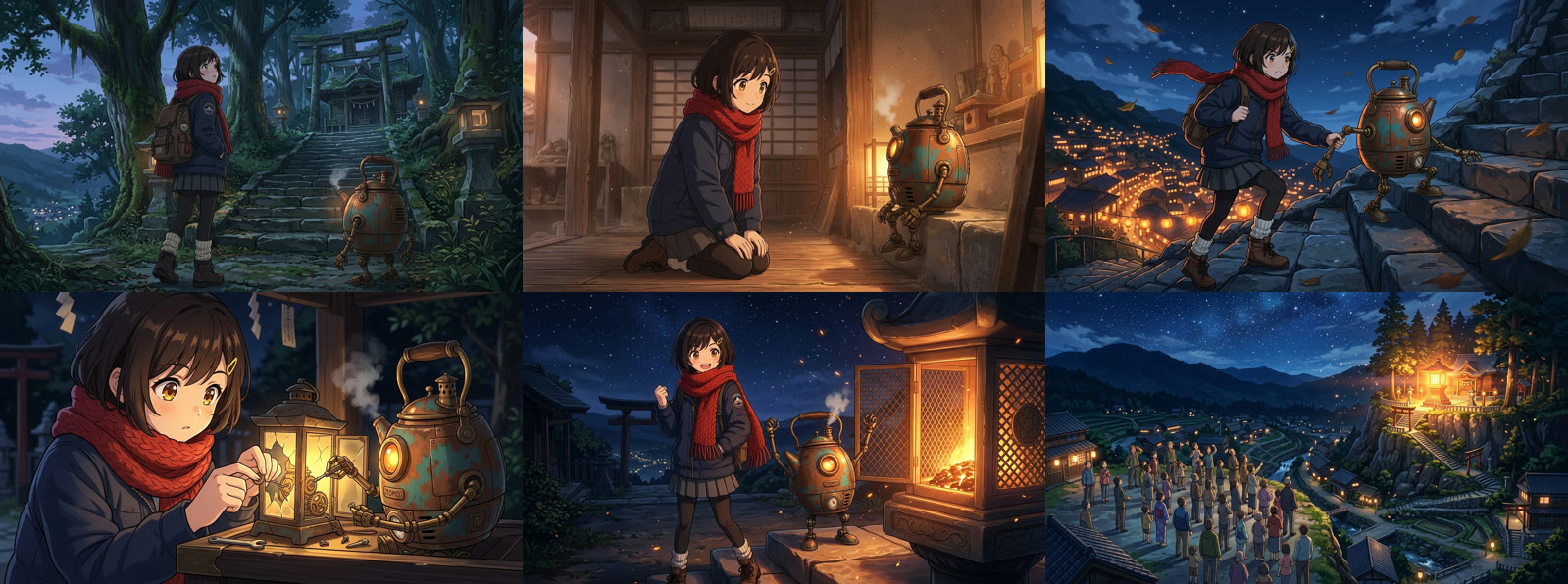
The same works in anime. In our anime episode, The Lantern Keeper of Kiriyama, each character's reference sheet was set as canonical, which is how Hana keeps her yellow hair clip and red scarf in all six scenes:
More in the Story Creator guide.
2. "My video looks AI-generated. How do I make it look real?"
Our answer: Two changes do most of the work. Draw the keyframes with a photographic image model such as GPT Image 2.5 Sunburst by OpenAI, and let a video model that speaks, such as MiniMax H3 Max, voice the lines in the same pass as the picture, so the voices, breathing and room sound belong to the shot. You can try the keyframe model on its own in the image generator.
What it made: The first version of The Last Tide Café used Nano Banana 2.1 keyframes, Seedance 2.0 Fast and exact lines voiced by text-to-speech. It worked, but the frames had a glossy, generated look and the separately voiced lines sat on top of the picture. We kept the same script and identity sheets, switched the keyframes to GPT Image 2.5 Sunburst and the animation to MiniMax H3 Max at 1080p with generative speech, and rendered again. Six shots, 55 seconds:
Both characters are fictional.
More in the Story Creator guide.
3. "The text on my product label is misspelled. Do I have to make the whole image again?"
Our answer: No. Fix only the label with a region edit in Ideogram 4.5. Open the image in image editing with Ideogram 4.5, choose A region, draw a box around the label and describe the correct text. Only the box is redrawn.
What it made: Ideogram 4.5 had generated this honey jar at 2048 × 2048 with a garbled third line on the label. We drew a 720 × 380 box over the label and asked for LAVENDER HONEY over RAW · UNFILTERED, in the same hand-lettered ink. It took 56 seconds. Of the 3,920,704 pixels outside the box, 0 changed.
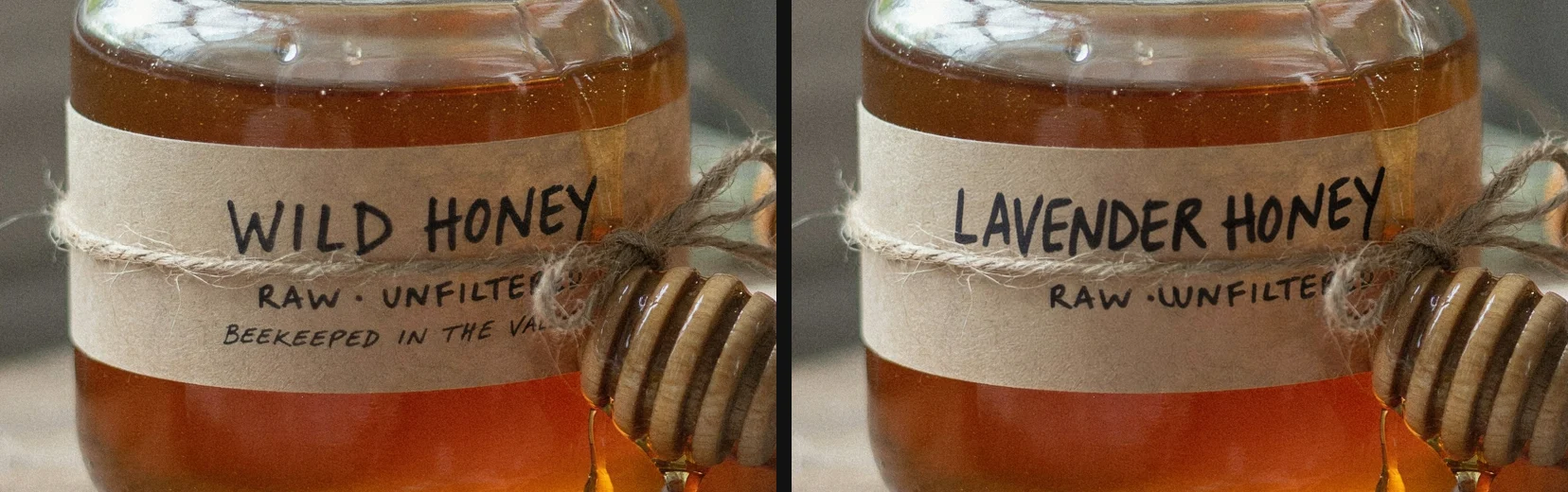
More in the Ideogram 4.5 region-edit guide.
4. "My printer wants the logo as a vector file, and I only have a PNG."
Our answer: Use Ideogram Vector. In image mode, upload your image and leave the prompt empty: it traces the picture into an SVG, which stays sharp at any size. If you would rather start fresh, describe a new logo and it draws one as an SVG from the start.
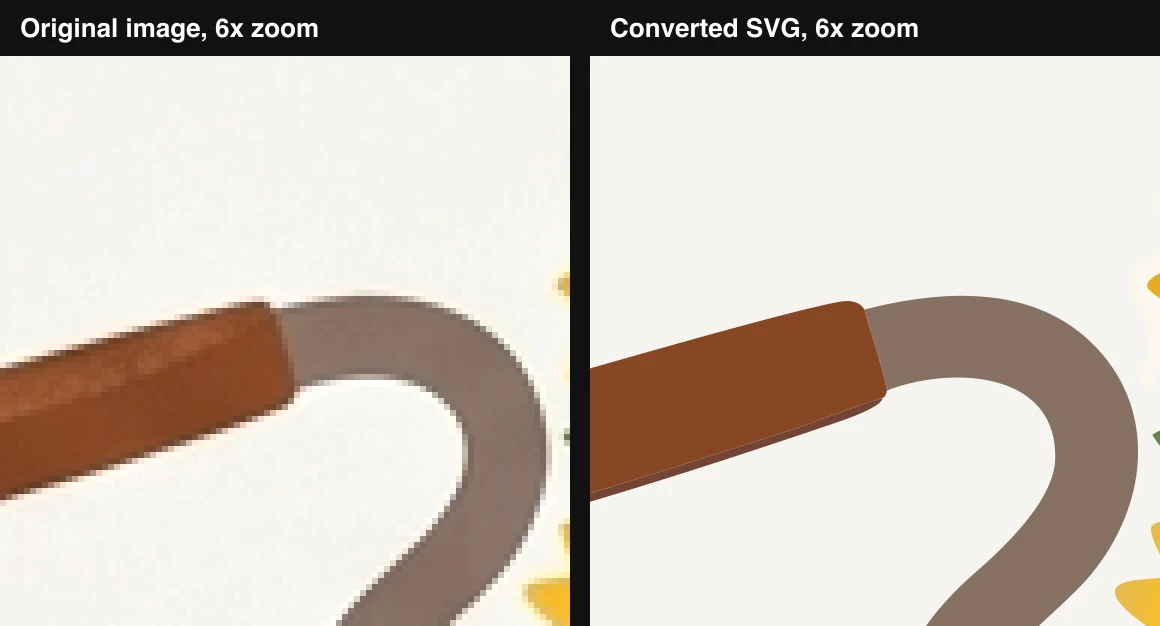
What it made: We traced a 1200 × 896 bicycle illustration made with Nano Banana 2.1. With Detail set to Detailed, it became a 282-path SVG of 120 KB in 14 seconds. Zoomed in six times, the original breaks into pixels while the SVG keeps a clean edge:
From a prompt alone, a logo for a coffee roaster came back as an 18-path SVG of 9 KB in 32 seconds. The name is drawn as shapes, so it looks the same in any app, with or without the font:

More in the Ideogram Vector guide.
5. "There are so many video models. Which one should I use for a moody night scene?"
Our answer: Don't guess. Run the same prompt through two models in Compare, with identical settings, and keep the one that looks right to you. If the shot has text in it, such as a sign, favour a model that spells well.
What it made: We gave Kling 4.0, Kling 3.0, Seedance 2.5 and Veo 3.1 the same prompt, at 8 seconds, 720p and 16:9 with sound:
At water level, a small paper boat floats down a rain-filled city gutter at night, past a glowing neon sign that reads "OPEN 24H". Raindrops ripple the water and the neon reflects in the puddles. Sound of rain and soft piano.
Kling 4.0, Kling 3.0 and Seedance 2.5 spelled OPEN 24H correctly. Veo 3.1's P broke up, so its sign reads closer to "OFEN 24H", but it had the heaviest rain and the most cinematic street. The right pick depends on what matters most in your shot.
More in the Kling 4.0 vs Kling 3.0 vs Seedance 2.5 vs Veo 3.1 comparison.
6. "I made a video in English. Can I post it in Japanese, in the same voice?"
Our answer: Yes. Upload it to the Video Translator, which dubs it with VEED Dubbing. The speech is translated and re-voiced in the speaker's own voice, and their lips are synced to the new words. Videos can be up to 10 minutes long.
What it made: A 10-second clip of a potter in her studio, made on Flixly with HeyGen Video:
The Japanese dub took 75 seconds. She keeps her own voice, and her lips move with the Japanese words:
More in the AI video dubbing guide.
7. "I want a moving background for my website, but a video file is too heavy."
Our answer: Describe the loop to Motion to Code GLSL in the Video Generator. Instead of a video, it writes a shader: a small code file that loops seamlessly and stays sharp at any screen size, with a page that plays it and an MP4 preview. When you start from a prompt, MiniMax H3 Max first animates it into a short reference clip, and Motion to Code rebuilds that clip as code.
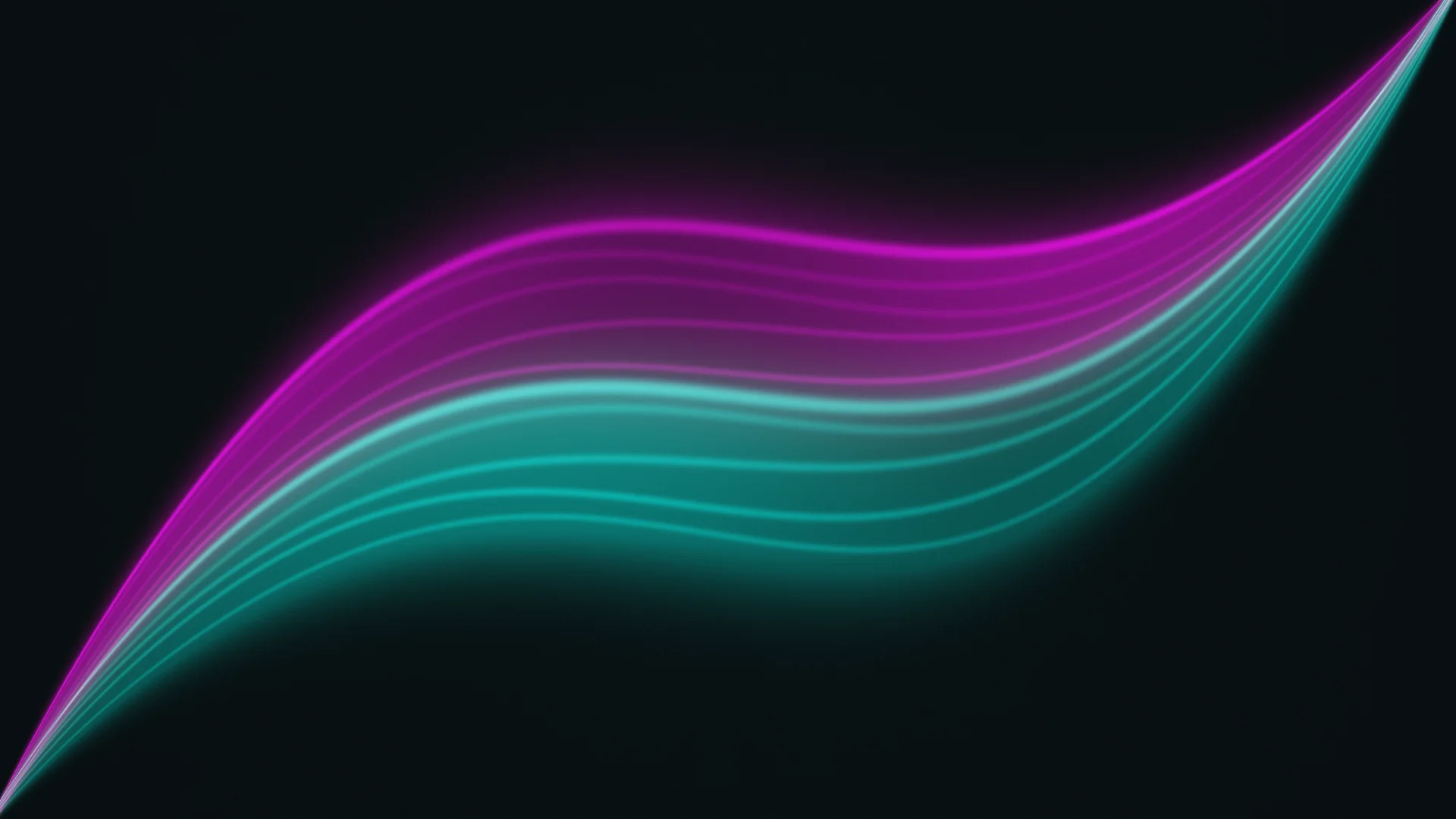
What it made: Six seconds at 16:9, in 128 seconds, from this prompt:
Abstract seamless loop: slow ribbons of teal and magenta light drift across a near-black background like an aurora, soft glow, a gentle breathing pulse, fine film grain, no text, no objects.
The same shader drawn by its own page at 1920 × 1080, sharp at full resolution because it is code, not video:
More in the Motion to Code guide.
8. "Can a person in my video wear or hold my actual product?"
Our answer: Use reference-to-video in HeyGen Video. On the Reference tab, add a photo of the person and a photo of the product, and refer to them in the prompt by their labels, [Image1] and [Image2].
What it made: Two reference images, 8 seconds, 768p, 16:9:
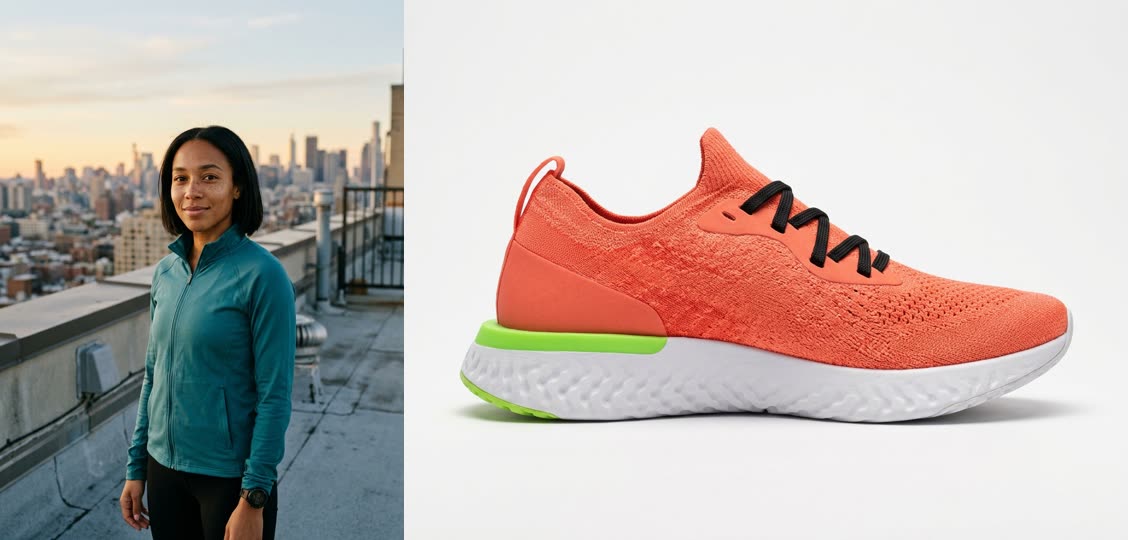
The woman from [Image1] sits on a rooftop bench at dawn, laces up the coral sneakers from [Image2], stands and starts jogging toward the skyline. Close-up of the shoes hitting the ground, then a wide shot of her running. Footsteps, wind and distant city traffic.
HeyGen Video kept her face, haircut and teal jacket, and the shoe's coral knit, black laces and lime heel, through a close-up and a wide shot.
More in the HeyGen Video and Voice guide.
Where to start, by goal
| If you want to… | Start with | On Flixly |
|---|---|---|
| Keep a character the same in every scene | An identity sheet in Story Creator | Story Creator |
| Make a video look real, not AI-generated | GPT Image 2.5 Sunburst keyframes, MiniMax H3 Max | Image generator |
| Fix one part of an image | Ideogram 4.5, A region | Image editing |
| Turn a logo or drawing into an SVG | Ideogram Vector | Image to SVG |
| Choose between two video models | The same prompt on both | Compare |
| Publish a video in another language | VEED Dubbing | Video Translator |
| Animate a website background | Motion to Code GLSL | Video Generator |
| Put your product in a video | HeyGen Video, reference-to-video | Reference to video |
| Anything else | A question to the Flixly team | Help creating with AI |
Ask your own question
Your question is not on this list? That is what the help page is for. Ask the Flixly team, tell us what you are making and where you are stuck, and we will answer by email, guide you through it and, if you want, test it with you on Flixly.
Frequently Asked Questions
Is help from the Flixly team free?▾
Yes. Asking a question costs nothing, and you don't need a paid plan or even an account. You only pay for the generations you choose to run, and Flixly shows the cost before each one.
How do I ask the Flixly team a question?▾
Use the form on the Help creating with AI page at flixly.ai/ai-help, or email support@flixly.ai. Say what you are making and where it will be shown, and if you have already tried, add the model, the prompt and a link to the result. We answer by email, usually within 24 hours.
Will the Flixly team test it with me?▾
Yes. If you want, we test your idea with you on Flixly: we try the model and settings we suggest, look at the result with you and guide you through the next try until you know what works.
Can you help me keep the same character in every scene?▾
Yes. Tell us about the character and where it drifts. We show you how to use one approved image or a six-view identity sheet as the reference, which models hold a face best, and how to redraw only the frame that changed instead of the whole story.
Can you help my results look less AI-generated?▾
Yes. Send us the result and say what looks fake: the skin, the light, the motion or the voice. We suggest a more photographic model and a video model that speaks the lines inside the shot, and we can test the change with you.
What if a generation failed or came out wrong?▾
A generation that fails is refunded automatically. If one finished but looks wrong, tell us what you expected. We will explain why it happened and what to change, whether that is the prompt, the settings, an edit or a different model.
Were the examples in this guide really made on Flixly?▾
Yes. Every image and video in this guide was generated on Flixly in our own tests, and each section links the guide that lists the full settings, prompts and timings.